Account Scoring
Account Scoring evaluates a company's attributes — size, industry, revenue, geography, customer status — and produces a fit score for the entire account. It's the foundation of Account-Based Marketing inside kenbun.
Requires ABM. The Account tab under Configure > Scoring appears only when Account-Based Marketing is enabled. Turn it on under Settings > Scoring.
Account Scoring vs. Lead Scoring
| Lead Scoring | Account Scoring |
|---|---|
| Tracks individual behavior | Evaluates company attributes |
| Based on events and actions | Based on firmographic data |
| Measures engagement and interest | Measures ICP fit and qualification |
| Changes frequently | Changes rarely |
| Examples: page views, email opens | Examples: company size, industry |
Both matter — account scoring identifies which companies to target; lead scoring identifies which contacts are engaged. The combination reveals your highest-priority opportunities.
Prerequisite: Account Mapping
Account scoring needs account fields populated. Set those up via Account Mapping — this maps incoming event metadata onto standard account fields like industry, employees, revenue, and country. Without mapping, scoring rules have nothing to evaluate.
Configuring Account Rules
Account Scoring Rulesets
Account rules live inside rulesets. You can run multiple rulesets in parallel for market segments, regional variations, or experimental scoring. Only one ruleset is primary at a time — that's the one whose scores show up in the UI by default and drive Account Levels.
To create a ruleset:
- Navigate to Configure > Scoring > Account.
- Click New Ruleset.
- Enter a descriptive name (e.g., "Enterprise ICP Scoring").
- Click Create.
To set primary, click the ⋯ menu on a ruleset and choose Set as Primary.
Create a Rule
- Open a ruleset.
- Click Add Rule.
- Configure:
- Account Property — the firmographic field to evaluate
- Condition — how to match (equals, contains, starts with, gt/gte/lt/lte)
- Comparison Value — the target value
- Weight — points to add when matched
- Click Save Rule.
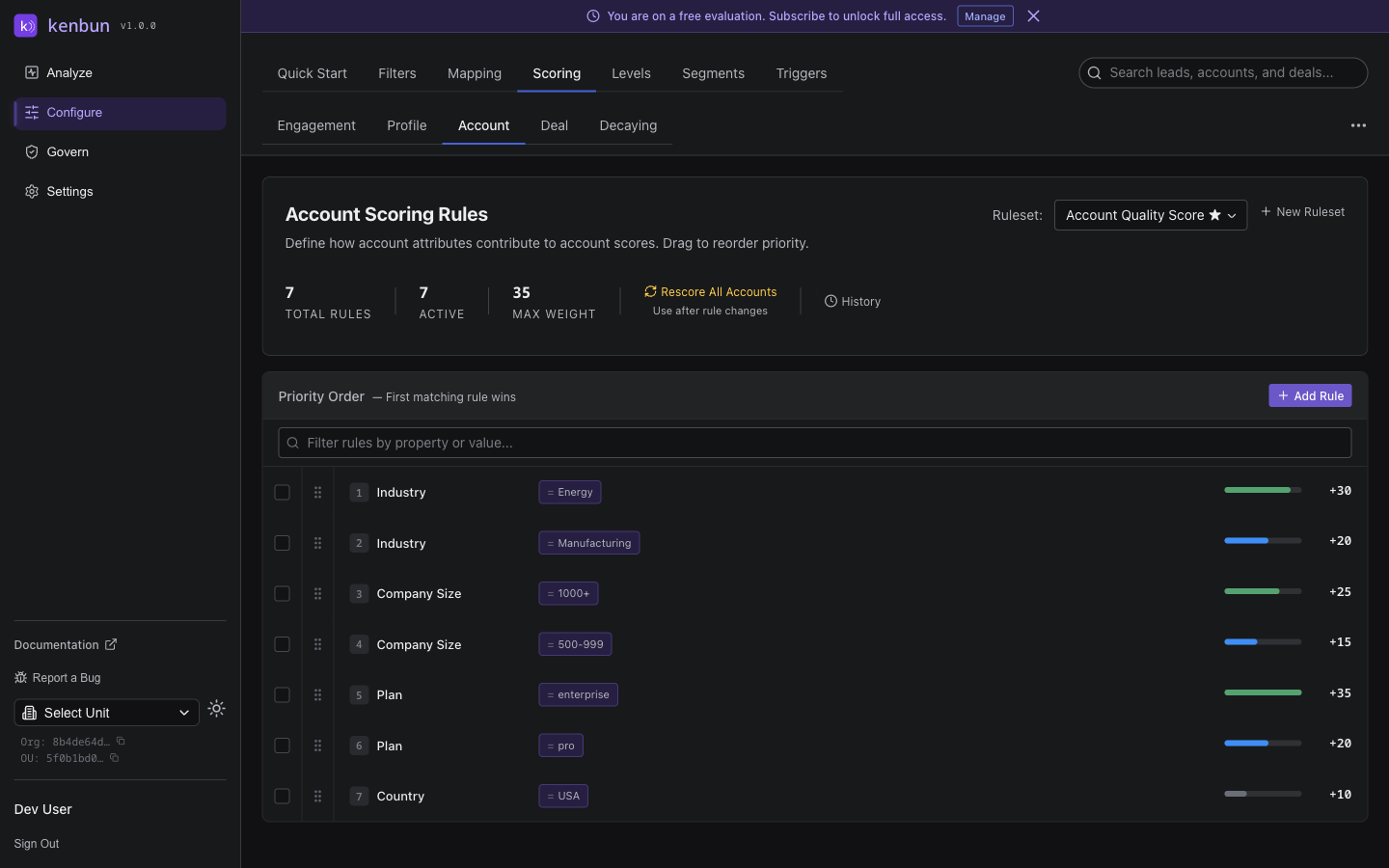
Common Account Properties
| Property | Description | Example Values |
|---|---|---|
company_size | Company size tier | Small, Medium, Enterprise |
industry | Business sector | Technology, Healthcare, Finance |
country | Geographic location | United States, Canada |
employees | Number of employees | 100, 500, 5000 |
revenue | Annual revenue | 1000000, 50000000 |
plan | Subscription tier | Free, Pro, Enterprise |
account_status | Relationship stage | Prospect, Customer, Partner |
You can also score on any custom property collected via account mapping.
Example Models
Enterprise Sales Focus
company_size equals "Enterprise" → +50
employees gte 1000 → +40
revenue gte 10000000 → +45
country in [US, UK, CA, AU] → +20
Targets accounts at 100+ points.
SMB Product
company_size equals "Small" → +30
company_size equals "Medium" → +50
employees lte 500 → +25
plan equals "Pro" → +40
Focus on 70+ point accounts.
Vertical Targeting
industry equals "Healthcare" → +60
industry equals "Finance" → +55
industry equals "Technology" → +50
industry equals "Education" → +45
Customer Expansion
account_status equals "Customer" → +60
plan equals "Pro" → +30
employees gte 100 → +25
tenure gte 12 months → +20
Scoring Mechanics
When account metadata changes:
- kenbun loads the primary account scoring ruleset.
- Each rule's condition is evaluated against the account's properties.
- If matched, the rule's weight is added to the account score.
- The total replaces the previous account score.
Example. With the Enterprise ICP ruleset above, an account with company_size: Enterprise, industry: Technology, employees: 2500, country: Canada scores 120 points — country didn't match.
Account scores update when account metadata changes, the primary ruleset changes, or rules within the primary ruleset change. Lead engagement does not update account scores unless you have rules that score on engagement-derived attributes.
Score Explain
On the account detail page, click the account score to open Score Explain. You'll see:
- Each rule that matched and the weight it contributed.
- A Show N unmatched rules disclosure listing rules the account failed — useful for figuring out what would need to change for the score to climb.
- A Max level reached badge when the account has hit the top tier.
Best Practices
Start With Your ICP
Define your Ideal Customer Profile first:
- Company size that converts best.
- Industries with the highest LTV.
- Geographic regions you serve.
- Firmographic attributes that indicate product-market fit.
Use those insights to seed your initial rules. Don't try to score every property — pick the 5–10 that actually predict conversion.
Weight By Importance
| Tier | Weight Range | Examples |
|---|---|---|
| Critical factors | 40–60 | Must-have company size, target industry, key market segment |
| Important factors | 20–40 | Preferred geography, revenue range, company maturity |
| Nice-to-haves | 10–20 | Secondary industries, additional attributes |
Use Consistent Scales
Pick a total score range and stick to it: 0–100 (reads as a percentage), 0–200 (more granularity), or align numerically with your Account Levels. Whatever you pick, weights should sum predictably for typical accounts.
Avoid Negative Disqualifiers
Instead of using negative weights to penalize accounts:
- Don't give them points in the first place.
- Use Account Levels to separate low-fit accounts.
- Filter disqualified accounts in your views.
Negative scoring creates confusing totals and makes Score Explain harder to read.
Hard disqualification. For accounts that must be excluded from the pipeline entirely (competitors, current customers, off-territory), use a hard-disqualification rule. Switch Rule type to Hard disqualify in the rule slideout. See the Hard Disqualification guide for the full walkthrough.
Review Regularly
- Monthly: check if scores align with conversion rates.
- Quarterly: adjust weights based on closed-won data.
- Annually: major ICP review and scoring overhaul.
Troubleshooting
All Accounts Show 0
- A ruleset must be set as primary.
- The primary ruleset must be enabled.
- Account properties must match rule property names exactly (case-sensitive).
- Accounts must have the metadata properties you're scoring against.
Scores Don't Match Expected Values
- Use Score Explain to see which rules matched.
- Check for typos in property names or values.
- Consider
containsinstead ofequalsif values vary slightly.
Scores Don't Update After Rule Changes
- Confirm the ruleset is primary and enabled.
- Wait a couple of minutes for recalculation.
- Trigger an update by editing an account's metadata.
- For bulk recompute, use Rescore All Accounts.
Rules Won't Save
- Weights are whole numbers; decimals are rejected.
- Property names are case-sensitive.
- Check for leading or trailing spaces in comparison values.