Velocity Based Filters
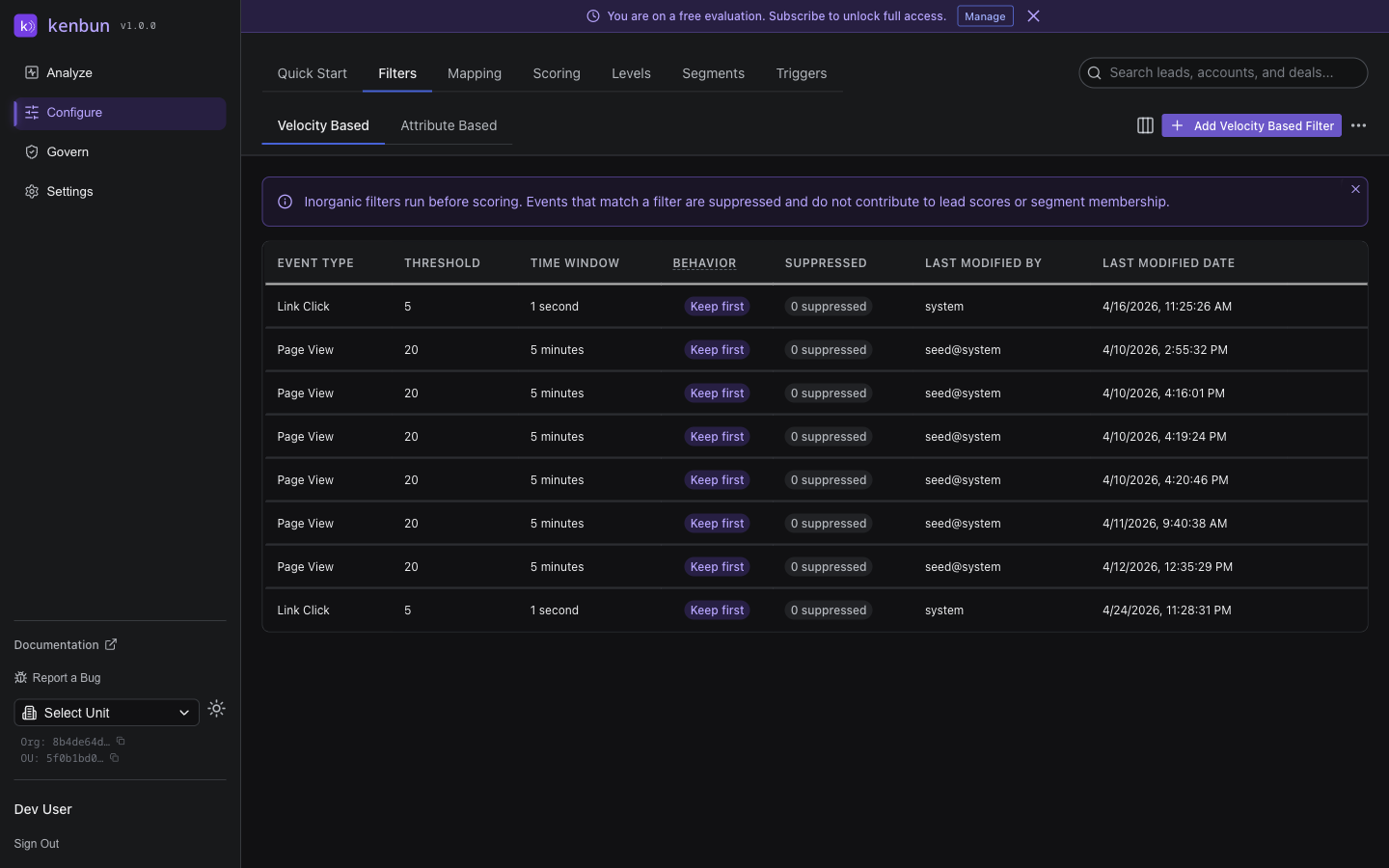
Velocity based filters help kenbun identify and suppress events that exceed normal human engagement rates, preventing automated or bot-driven activity from inflating lead scores. These filters are found under Configure > Filters > Velocity Based.
For filters that suppress events based on metadata content (such as user-agent strings or known test markers), see Attribute Based Filters.
Why Velocity Matters
A real person visiting your pricing page three times in a day is meaningful. A script hitting it 200 times in two minutes is not. Velocity based filters draw that line automatically — events that cross your defined threshold are suppressed and excluded from scoring, session creation, and lead creation. The raw event data is still stored for audit purposes.
kenbun first normalizes machine fan-out (such as security scanner bursts on email opens) before applying velocity checks, so your filters see realistic per-lead counts rather than inflated totals from legitimate systems.
How Velocity Filters Work
Each filter watches a specific event type and triggers when a lead crosses a threshold within a time window:
- A lead generates events of the monitored type
- kenbun counts events for that lead within the rolling time window
- Once the count exceeds the threshold, subsequent events are suppressed
- With Keep First, Suppress Rest enabled, the first event in each burst still scores — only the duplicates are dropped
Suppressed events are marked with a suppression reason of inorganic or inorganic_grouped and do not contribute to lead scores.
Filter Components
Each velocity filter has four settings:
| Setting | Description |
|---|---|
| Event Type | The event type to monitor (e.g., Page View, Email Open) |
| Count Threshold | How many events within the window before suppression begins |
| Time Window | The rolling window, entered in milliseconds. A live hint below the field shows the human-readable equivalent (e.g., 300000 = "5m") |
| Keep First, Suppress Rest | When on, the first event in each burst still scores; subsequent duplicates are suppressed |
Creating a Velocity Filter
- Navigate to Configure > Filters
- Select the Velocity Based tab
- Click Add Inorganic Activity Filter
- Choose an event type, set the threshold, and set the time window
- Toggle Keep First, Suppress Rest if you want the opening event to score
- Save the filter
A plain-language summary appears as you configure each filter. For example:
Page View events from the same lead that occur more than 15 times within 5m will be flagged as inorganic and excluded from scoring. The first event in each burst will be kept; subsequent duplicates will be suppressed.
Review this summary before saving to confirm the filter behaves as intended.
Example Configurations
Page View Bot Detection
Event Type: Page View
Threshold: 20 events
Time Window: 60000 ms (1 minute)
Keep First, Suppress Rest: On
Allows one page view to score even during a burst, then suppresses the rest. Useful when tracking entry to a high-value page.
Email Open Spam Detection
Event Type: Email Open
Threshold: 5 events
Time Window: 1000 ms (1 second)
Keep First, Suppress Rest: Off
Suppresses all opens in a rapid burst — five opens in one second is almost certainly a security scanner.
Form Submission Protection
Event Type: Form Submit
Threshold: 3 events
Time Window: 5000 ms (5 seconds)
Keep First, Suppress Rest: On
Keeps the first genuine submission and drops duplicates from retry storms or automated testing.
Best Practices
Start with higher thresholds. It is easier to tighten a filter later than to explain to sales why legitimate leads were suppressed.
Use Keep First, Suppress Rest for high-value events. For events like Demo Request or Pricing Page View, you usually want at least one occurrence to score even if the lead triggers the filter.
Review suppressed counts monthly. Each filter in the list shows a suppressed event count. If a filter is suppressing far more events than expected, check whether the threshold is too aggressive.
Align with sales. Ask your sales team which lead behaviors feel most suspicious — they will often flag patterns before the data does.
Troubleshooting
| Symptom | Likely Cause | Solution |
|---|---|---|
| Filter never triggers | Event type name does not match exactly | Check spelling and casing against your actual event types |
| Too many false positives | Threshold is too low for normal behavior | Raise the threshold or extend the time window |
| Legitimate leads being suppressed | Keep First, Suppress Rest is off | Enable the toggle so at least one event scores |
Related
- Attribute Based Filters — Suppress events by metadata content (user-agent, test markers, etc.)
- Velocity Based Filters API — Manage velocity filters programmatically