Web Beacon
The kenbun Web Beacon is a lightweight JavaScript snippet that automatically tracks visitor behavior on your website. Install it once and start capturing page views, scroll depth, engagement time, and custom events — all without writing any tracking code.
What It Does
The beacon provides real-time behavioral intelligence:
- Automatic Tracking: Page views, scroll depth, engagement time, outbound clicks
- Custom Events: Track button clicks, form submissions, and other interactions via API
- DataLayer Interception: Optionally capture GTM
dataLayer.push()events like purchases, form submissions, and video interactions - Visitor Identification: Associate anonymous visitors with email/ID when they identify themselves
- Passive Idle Detection: Distinguishes active engagement from idle time
- Session Continuity: Maintains visitor identity across pages and sessions
- Works with Chrome Extension: Receives events from the Chrome Extension visual tagger
The beacon is built for performance: lightweight (~5 KB gzipped), non-blocking, and privacy-friendly.
Quick Start
Installation
- Navigate to Settings → Integrations → Web in kenbun
- Copy the beacon snippet (it includes your unique token)
- Paste the snippet in the
<head>section of your website (before</head>) - Deploy to production
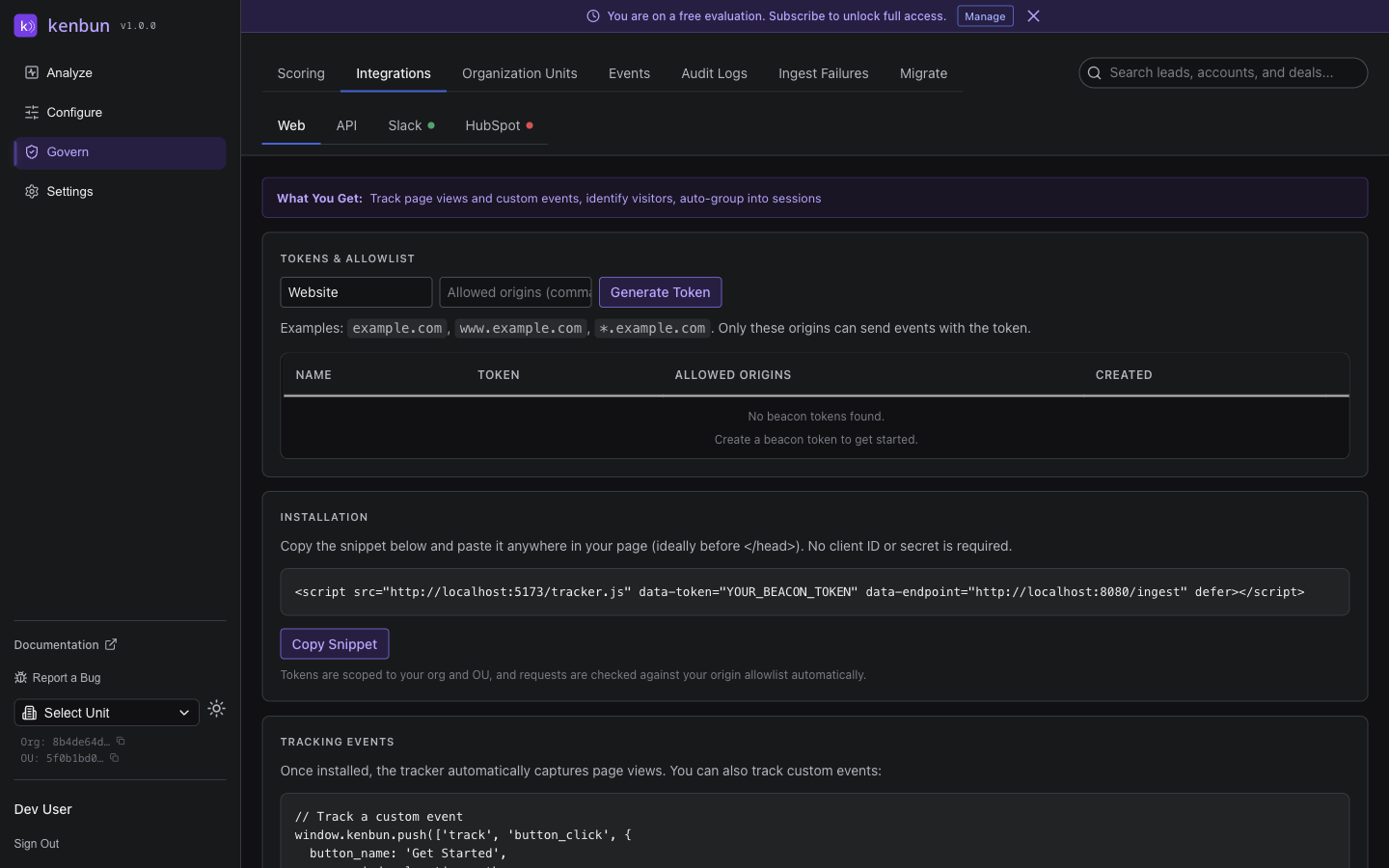
Example snippet:
<script src="https://app.kenbun.io/tracker.js"
        data-token="YOUR_BEACON_TOKEN"
        data-endpoint="https://app.kenbun.io/ingest"
        defer></script>
Replace YOUR_BEACON_TOKEN with the actual token from your kenbun settings. Tokens are scoped to your Organization Unit and enforce an origin allowlist for security.
How Tokens Work
- Each beacon token is unique to your OU
- Tokens include an origin allowlist (domains where the token is valid)
- No sensitive credentials are exposed in the browser
- Tokens cannot be used from unauthorized domains, preventing token theft and abuse
- Tokens can be rotated in Settings → Integrations → Web
Automatic Tracking
The beacon automatically captures page_view events with structured metadata:
- Page context:
path, fullurl,referrer,title,language,user_agent - UTM params:
utm_source,utm_medium,utm_campaign,utm_term,utm_content - Dimensions:
screen.width/height,viewport.width/height scroll_percent: Maximum scroll depth (0–100)- Engagement metrics (see below)
Engagement Metrics
kenbun automatically tracks how engaged visitors are with your content. The beacon distinguishes between active engagement (when someone is reading, scrolling, or interacting) and idle time (when the tab is open but there's no activity).
| Metric | Description | Example |
|---|---|---|
engaged_time_ms | Time actively engaging with the page | 180000 (3 minutes) |
idle_time_ms | Time when the page was open but inactive | 720000 (12 minutes) |
times_went_idle | Number of times the visitor stopped interacting | 2 |
Why this matters:
- Lead Scoring: Use engaged time to identify high-intent leads. Someone who spends 8 minutes actively reading your pricing page is more qualified than someone who glanced at it for 30 seconds.
- Content Performance: High scroll percentage + high engaged time = compelling content that resonates.
- Visitor Segmentation: Engaged readers (high engaged, low idle), researchers (multiple visits, consistent engagement), quick scanners (low engaged, high scroll).
{
  "engaged_time_ms": 180000,
  "idle_time_ms": 720000,
  "times_went_idle": 2,
  "scroll_percent": 85
}
The legacy time_visible_ms field still exists for backward compatibility but reports the same value as engaged_time_ms. Use engaged_time_ms for all new integrations and scoring rules.
Other Automatic Events
| Event Type | When It Fires | Key Metadata |
|---|---|---|
outbound_link_click | Visitor clicks an external link | href, element_text, url |
page_scrolled | Visitor scrolls past 90% of the page | scroll_percent, url |
page_unloaded | Visitor leaves the page (navigates, closes) | engaged_time_ms, idle_time_ms, times_went_idle, scroll_percent, url |
Custom Events
Track custom interactions on your website using the beacon API.
Track an Event
window.kenbun.push(['track', 'Event Name', { metadata_key: 'value' }]);
- Event Name (string): Name in Title Case (e.g.,
CTA Click,Video Play) - metadata (object): Key-value pairs with event details
// Track a button click
window.kenbun.push(['track', 'Pricing CTA Click', {
  button: 'Get Started',
  plan: 'Enterprise'
}]);

// Track video engagement
window.kenbun.push(['track', 'Video Play', {
  video_id: 'demo_2024',
  duration: 120
}]);
Identify a Visitor
Associate an anonymous visitor with their email or external ID.
window.kenbun.push(['identify', {
  email: 'user@example.com',
  external_id: 'user_123',
  phone: '+1234567890'
}]);
When to identify: after user logs in, after form submission (if you capture email), when user verifies email, or when user creates an account. Once identified, all subsequent events are linked to that lead.
DataLayer Interception
If your website uses Google Tag Manager (GTM) or pushes events to window.dataLayer, the beacon can automatically capture those events and send them to kenbun. This gives you visibility into video interactions, form submissions, demo requests, and other events already flowing through GTM — without duplicating tracking code.
DataLayer interception is disabled by default. Enable it by adding the data-datalayer-events attribute to your beacon script tag.
Configuration Options
| Attribute Value | Behavior |
|---|---|
| (attribute not present) | DataLayer interception is completely disabled (default) |
data-datalayer-events="*" | Capture all non-GTM-internal dataLayer events |
data-datalayer-events="demo_requested,trial_started" | Capture only the listed events (comma-separated, case-insensitive) |
Capture specific events:
<script src="https://app.kenbun.io/tracker.js"
        data-token="YOUR_BEACON_TOKEN"
        data-endpoint="https://app.kenbun.io/ingest"
        data-datalayer-events="purchase,add_to_cart,generate_lead"
        defer></script>
Capture all events:
<script src="https://app.kenbun.io/tracker.js"
        data-token="YOUR_BEACON_TOKEN"
        data-endpoint="https://app.kenbun.io/ingest"
        data-datalayer-events="*"
        defer></script>
How It Works
When enabled, the beacon intercepts calls to dataLayer.push() and forwards matching events to kenbun. Each intercepted event is sent with the event type DataLayer: <event_name> and includes the full dataLayer entry as structured metadata.
GTM internal events are always excluded. Events like gtm.js, gtm.dom, gtm.load, gtm.click, gtm.linkClick, gtm.scrollDepth, gtm.formSubmit, and gtm.historyChange are filtered out automatically.
When to Use Each Mode
- Specific events (recommended for most teams): You know which GTM events matter and want predictable scoring rules.
- All events (
*): You are exploring what flows through your dataLayer, or you have a small number of custom events. - Disabled (default): You don't use GTM, or you prefer to track exclusively through the beacon API or Chrome Extension.
Example
When dataLayer.push({ event: 'demo_requested', form_name: 'Request a Demo', plan: 'enterprise' }) fires, kenbun receives:
- Event type:
DataLayer: demo_requested - Metadata: The full dataLayer entry including
form_nameandplan
You can then create scoring rules that award points for DataLayer: demo_requested or use triggers to notify sales when high-intent actions occur.
Interaction with Chrome Extension
If you also use the Chrome Extension, both the beacon and the extension can capture dataLayer events independently. To avoid duplicates, choose one approach per site:
- Beacon-only: Configure
data-datalayer-eventson the script tag (recommended for production) - Extension-only: Configure the allowlist in the Chrome Extension (useful for sites where you cannot modify the beacon snippet)
Performance and Privacy
Performance:
- Small footprint (~5 KB gzipped)
- Non-blocking (
deferattribute) - Efficient batching with
keepalivefor reliability - No cookies except an anonymous visitor ID
Privacy:
- Anonymous by default — no PII collected until visitor identifies themselves
- Visitor ID cookie is first-party only (not cross-site tracking)
- No third-party sharing — data sent only to kenbun
- Origin allowlist — tokens only work on authorized domains. Beacon tokens are browser-only credentials; every request must carry an
Originheader that matches one of the allowed origins on the token. Requests without a browserOrigin(such ascurl, server-side scripts, or backend integrations) are rejected. For server-to-server event ingestion, use a Personal Access Token instead.
Browser Support: Modern browsers (Chrome, Firefox, Safari, Edge). IE11 and older browsers degrade gracefully (beacon won't load).
Troubleshooting
Events Not Appearing in kenbun
Check the browser console (F12 → Console tab):
| Symptom | Likely Cause |
|---|---|
| No errors | Beacon loaded successfully |
401 Unauthorized | Token is invalid or expired (regenerate in Settings) |
403 Forbidden | Domain not in origin allowlist (add it to the token's allowed origins). For server-to-server callers without a browser Origin header, use a Personal Access Token instead |
| Network error | data-endpoint URL is incorrect or backend unreachable |
"Beacon Not Found on Page" (Chrome Extension)
The beacon script hasn't loaded yet or isn't installed. Verify the snippet is in <head>, check the network tab for the tracker.js request, and refresh the page after installing.
Double Page Views
Beacon snippet included multiple times (e.g., in both header and footer). Remove duplicates — the beacon should only be included once.
DataLayer Events Not Appearing
DataLayer interception is disabled by default. Add data-datalayer-events="*" (or specific event names) to the script tag. Verify your GTM container is firing events (check the console for dataLayer.push() calls). Confirm the event name is not a GTM internal event. If using a specific event list, check that names match exactly (case-insensitive).
Tracking Doesn't Work on Localhost
The beacon token's origin allowlist doesn't include localhost. Add http://localhost:3000 (or your local port) to the token's allowed origins in Settings → Integrations → Web.
Advanced Configuration
Custom Endpoint
For self-hosted deployments, set a custom endpoint:
<script src="https://your-domain.com/tracker.js"
        data-token="YOUR_BEACON_TOKEN"
        data-endpoint="https://your-kenbun-api.com/ingest"
        defer></script>
Testing on Staging
Create a separate beacon token for staging environments:
- In Settings → Integrations → Web, click Create Token
- Name it "Staging" and add staging domains to allowed origins
- Use this token in your staging environment
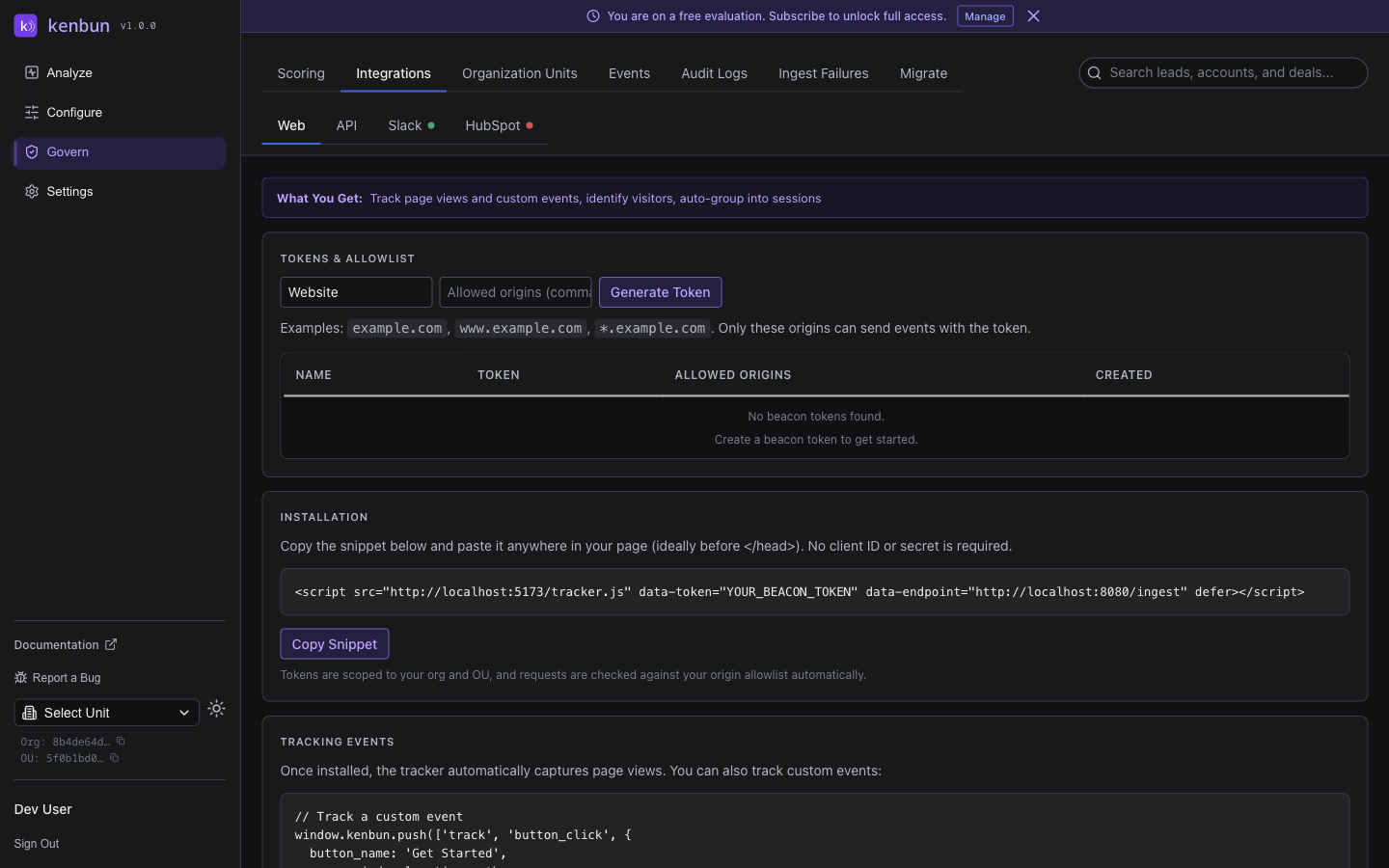
This keeps staging events separate from production.
API Reference
window.kenbun.push()
All beacon interactions use the push method. Both commands are fire-and-forget (no return value).
// Track an event
window.kenbun.push(['track', 'Event Name', { metadata }]);

// Identify a visitor
window.kenbun.push(['identify', { email, external_id, phone }]);
Script Tag Attributes
| Attribute | Required | Description |
|---|---|---|
data-token | Yes | Your beacon token from Settings → Integrations → Web |
data-endpoint | No | Custom ingest endpoint URL (defaults to kenbun SaaS) |
data-datalayer-events | No | Enable dataLayer interception: "*" for all events, or comma-separated event names |
defer | Recommended | Load script without blocking page rendering |
Notes
- The beacon uses
keepaliveso events are sent even when the page is closing - No credentials sent — bearer token authentication only
- Anonymous visitor ID stored in a first-party cookie (
_lv_vid, preserved for backward compatibility) - Multiple events may be sent in a single request for efficiency
- DataLayer interception is opt-in via
data-datalayer-events