Account Mapping
Account Mapping links event metadata fields to account-level properties. This is the prerequisite for Account Scoring and the foundation of any Account-Based Marketing (ABM) program in kenbun — without it, account scoring rules silently match nothing and your accounts table can't be filtered by firmographics.
Account mappings answer the question: "How do we extract company information from the data we already collect?"
For shared mapping concepts (source vs. target, update behavior, backfilling, history), see the Mapping overview. This page covers account-specific UI, examples, and pitfalls.
Prerequisite: ABM Enabled
Account Mapping requires Account-Based Marketing to be enabled for your workspace. If the Account tab isn't visible under Configure > Mapping, navigate to Settings > Scoring and toggle ABM on.
When To Use Account Mapping
Use account mapping any time you want kenbun to know about the company a lead works for, not just the lead themselves. Common ABM signals worth mapping:
- Industry / vertical — score SaaS prospects differently from manufacturing.
- Employee count or company size band — distinguish enterprise from SMB.
- Annual revenue — focus on accounts that can afford your pricing tier.
- Region or country — territory routing and regional campaigns.
- Plan or tier (for product-led companies) — score Free vs. Pro vs. Enterprise customers differently for expansion.
If your tracking already includes account_id on events, account mapping is what makes that association valuable — every event becomes an opportunity to enrich the account record.
Setting Up Account Mappings
Navigate to Configure > Mapping > Account.
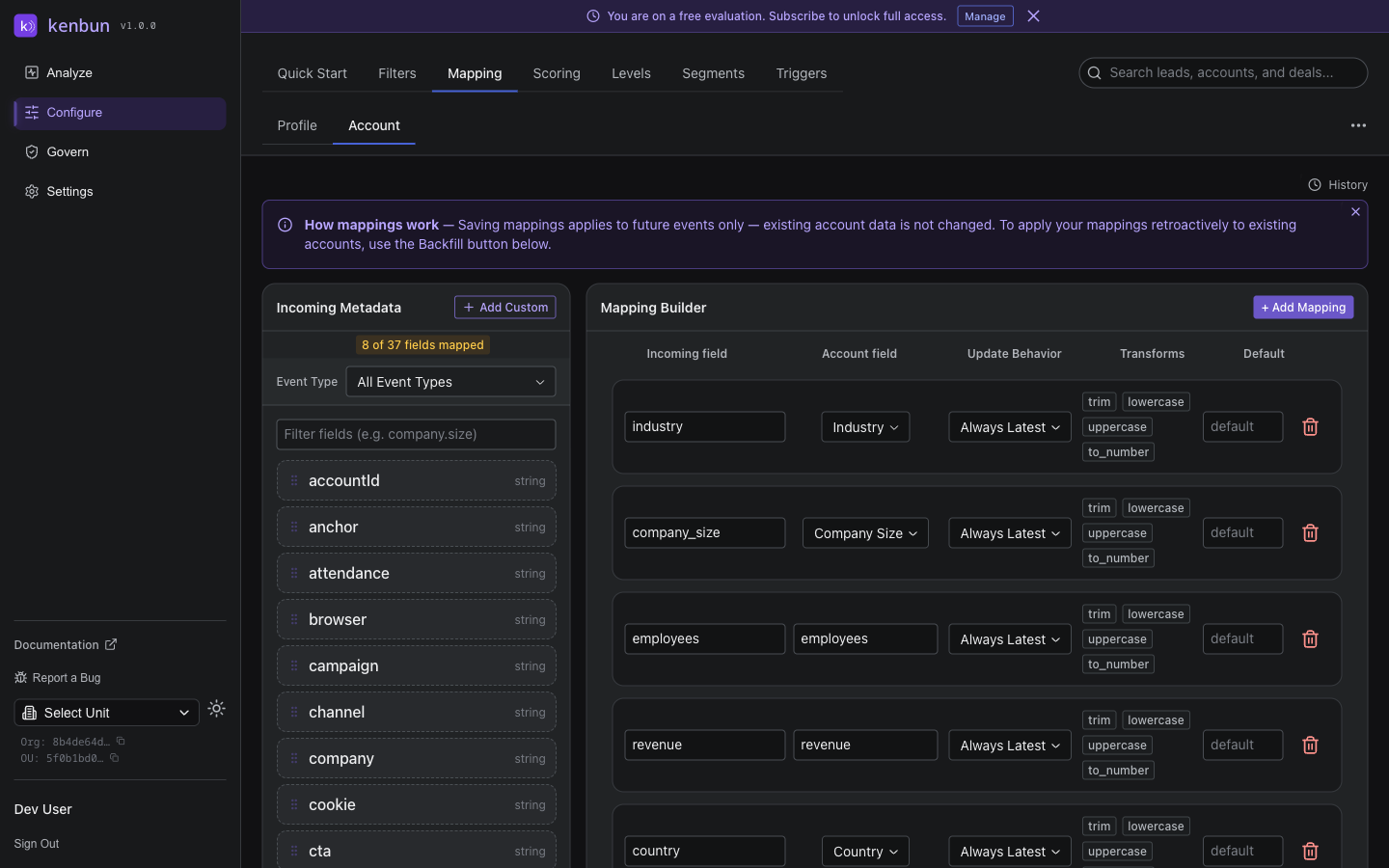
The layout mirrors profile mapping — an Incoming Metadata panel on the left, a Mapping Builder on the right.
Step-by-Step
- Navigate to Configure > Mapping > Account.
- Pick a source field from the Incoming Metadata list (or enter one manually).
- Choose the target account property.
- Set the update behavior — Always Latest for fields that change (company size as the company grows) or Only If Empty for fields that shouldn't change after first capture (signup date, original source).
- Click Save Mappings.
New events apply mappings immediately. To populate accounts that already exist, run a backfill (see below).
Common Account Mappings
Firmographics
| Source Field | Account Property | Why It Matters |
|---|---|---|
industry | industry | Score by vertical fit |
company_size | company_size | Banded size (SMB / Mid / Enterprise) |
employees | employee_count | Numeric size for finer scoring |
revenue | annual_revenue | Target revenue tiers |
country | country | Geographic territory and routing |
state / region | region | Sub-territory targeting |
Identifiers
| Source Field | Account Property | Why It Matters |
|---|---|---|
company_name | name | Display name in tables and notifications |
domain | domain | Stable identity, used for matching |
website | website | Linkable from the account detail page |
Subscription / Lifecycle
| Source Field | Account Property | Why It Matters |
|---|---|---|
plan | plan | Free, Pro, Enterprise tier |
mrr | mrr | Expansion targeting |
account_status | status | Customer, Prospect, Trial, Churned |
signup_date | signup_date | Cohort analysis and lifecycle triggers |
You can map any custom field; the table above is just the high-leverage starting set.
Backfilling Existing Accounts
Set up mappings retroactively against historical events:
- On Configure > Mapping > Account, click Backfill Account Metadata.
- kenbun walks through every existing account and re-applies mappings from each account's historical event metadata.
- Only If Empty mappings skip accounts that already have the value set.
Backfill is idempotent — safe to re-run.
Viewing Mapping History
Every account mapping change is audited:
- Navigate to Configure > Mapping > Account.
- Click History in the top-right corner.
- Each entry shows the change type (Created, Updated, Deleted), the team member, and the timestamp.
- Expand for a field-level diff.
When an account scoring rule suddenly behaves differently, the mapping audit log is the first place to look.
How Account Mapping Powers Account Scoring
Account scoring rules evaluate fields on the account's metadata. Those fields land there only because an account mapping populated them. The dependency is direct:
event arrives with account_id → mapping extracts metadata → account field set → account scoring rule fires
A scoring rule that references industry does nothing if no mapping writes to industry. See Account Scoring for the scoring side of this workflow, and Account Levels for the tiers built on top of account scores.
Property names are case-sensitive. Standardize on lowercase-with-underscores so scoring rules and mappings match exactly.
Critical Restriction: Cannot Map account_id
kenbun will not let you create an account mapping whose target is account_id. That field is the link between events, leads, and accounts; it must be set at the source — not derived from a mapping rule. To associate leads with accounts:
- Include
account_iddirectly in your tracking events. - Set
account_idvia the API on the lead. - Use Profile Mapping to derive
account_idfrom email domain or another lead-level signal — that path is allowed because it operates on the lead, not the account.
Pitfalls and Troubleshooting
Mapping Not Extracting Data
- Events don't include the source field. Verify with a recent event in the Events table.
account_idmissing from the event. Account mappings only apply to events with an account association. Addaccount_idto your tracking, or set it through profile mapping (e.g. derive from email domain).- Source field name mismatch (case-sensitive). Check the Incoming Metadata panel for the exact spelling.
Account Properties Not Recognized in Scoring
- Property name mismatch. The scoring rule's property must match the mapping's target exactly, including case.
- Ruleset not active. Confirm the primary ruleset is selected.
- Backfill not run. New mappings only apply to new events. If your accounts predate the mapping, run a backfill.
Account Metadata Keeps Changing
If a property keeps flipping between values, multiple events are likely sending different values for the same field:
- Find the offending source (events tagged with the property in the Events table).
- Decide which source is authoritative; either fix the others or switch the mapping to Only If Empty to lock in the first value.
Inconsistent Data Types
Scoring works best when a property has a consistent type across all accounts:
- ✅
employee_countis always a number —100,500,2500. - ❌
employee_countis mixed —"100","500–1000","Large".
Standardize at the source where you can. If you can't, use a separate property name for the banded text version (employee_band) and keep employee_count numeric.
Related Pages
- Mapping overview — shared concepts across profile and account mapping
- Profile Mapping — populate lead profile fields from event metadata
- Account Scoring — score accounts on mapped fields
- Account Levels — tier accounts by their score
- Account Field Mappings (ABM lens) — strategy and ABM workflow context