Accounts
The Accounts view gives you a unified, account-level perspective on engagement. Instead of looking at individual leads in isolation, you can see all the activity happening across an entire company -- helping you identify which accounts are most engaged and ready for outreach.
Accounts are part of kenbun's Account-Based Marketing (ABM) capabilities. To use this feature, ABM must be enabled in your workspace settings.
What You'll See
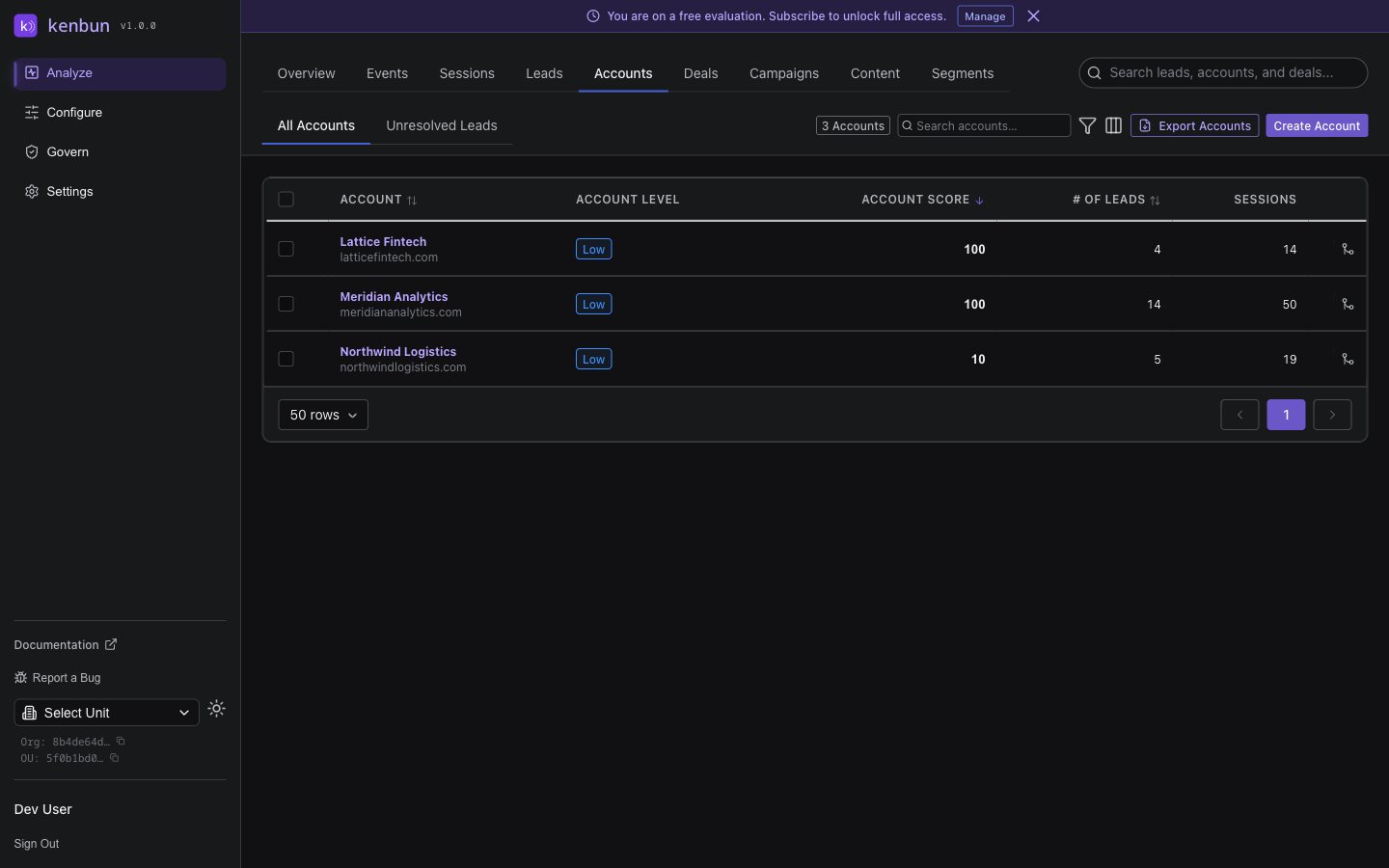
The accounts table shows:
- Account Name: Company name (derived from domain or account metadata)
- Account Level: The account's firmographic tier (e.g., "Target", "Qualified", "Standard")
- Account Score: Firmographic fit score based on company attributes. Click the score value to open the Score Explain panel, which shows a breakdown of every rule that matched and the weight each one contributed.
- # of Leads: Number of contacts associated with this account
- Sessions: Number of browsing sessions across all contacts
Finding Accounts
Filters
The Accounts list supports several filters to help you quickly narrow down to the accounts that matter:
| Filter | Description |
|---|---|
| Search | Find accounts by name or domain |
| Date Range | Limit to accounts with activity in a selected period (Today, Last 7 Days, Last 30 Days, Last 90 Days, All Time) |
| Account Level | Show only accounts at a specific tier (e.g., Target, Qualified) |
| Min Score | Show only accounts with an account score at or above a threshold |
| Owner | Filter by the name of the team member assigned to the top-scoring lead in the account |
| Has Leads | Show only accounts that have at least one associated lead |
Column Visibility
Click the column visibility toggle to show or hide columns in the table. Choose which data points matter most to your workflow:
- Account name and domain
- Account level
- Account score
- Number of leads
- Sessions
Account Detail Page
Click any account row to open the detailed account view, which provides a complete picture of the company's engagement.
Account Header
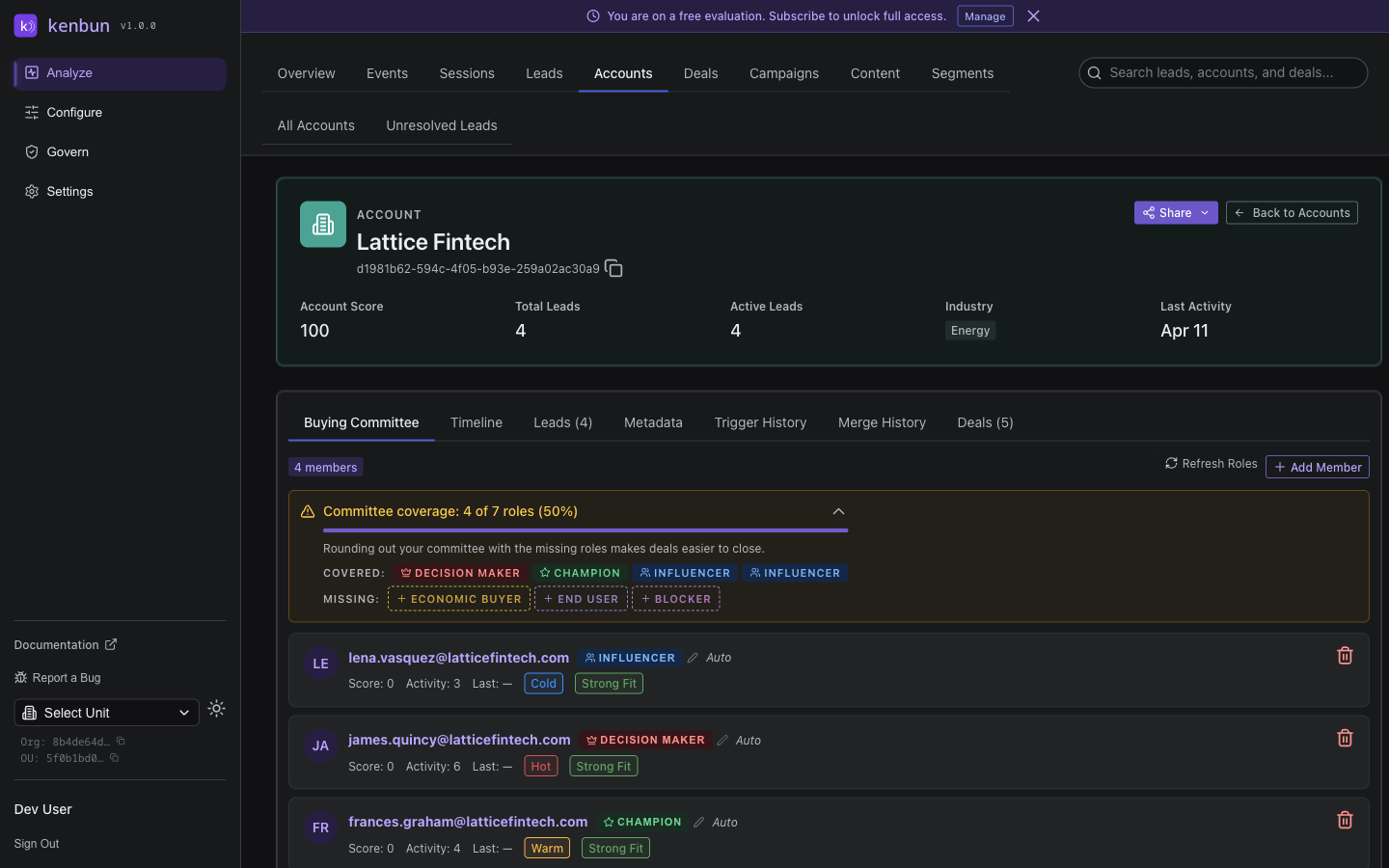
The header card displays key metrics at a glance:
- Account Score - Current firmographic fit score. Click the score to open the Account Score Explain panel (see Score Breakdown below)
- Total Leads - Number of contacts linked to this account
- Active Leads - Contacts with activity in the last 30 days
- Industry - Company industry (if available)
- Employees - Company size (if available)
- Revenue - Revenue range (if available)
- Last Activity - When any contact last engaged
Buying Committee
Directly below the header, the Buying Committee panel shows the key stakeholders involved in the purchase decision at this account. Each member appears with their role, engagement level, and recent activity — giving you a quick read on who is involved and how active they are.
Committee Roles:
| Role | Description |
|---|---|
| Decision Maker | Has final authority on the purchase |
| Influencer | Shapes evaluation criteria and vendor selection |
| Champion | Internal advocate who promotes your solution |
| KOL | Key opinion leader whose perspective carries weight |
| Other | Involved in the process without a specific defined role |
To add a contact to the buying committee, click Add Member in the panel, search for a lead, and choose their role. You can update a member's role by clicking their role badge, or remove them using the remove icon.
kenbun can also automatically detect buying committee members based on engagement patterns. Auto-detected members are marked as such, and you can override their roles manually at any time. Click Refresh Roles to re-run automatic detection while preserving any manually assigned roles.
Account Detail Tabs
Below the Buying Committee panel, the account detail page is organized into tabs:
| Tab | Description |
|---|---|
| Timeline | All activity across the account in chronological order |
| Leads | All contacts associated with the account |
| Metadata | Firmographic and company data organized into Account Summary, Identity, and Account Properties sections |
| Trigger History | Log of triggers that have fired for this account |
| Merge History | Record of past account merges |
| Deals | Associated deal records. This tab is only visible when Deal Management is enabled in Govern > Scoring. |
Timeline Tab
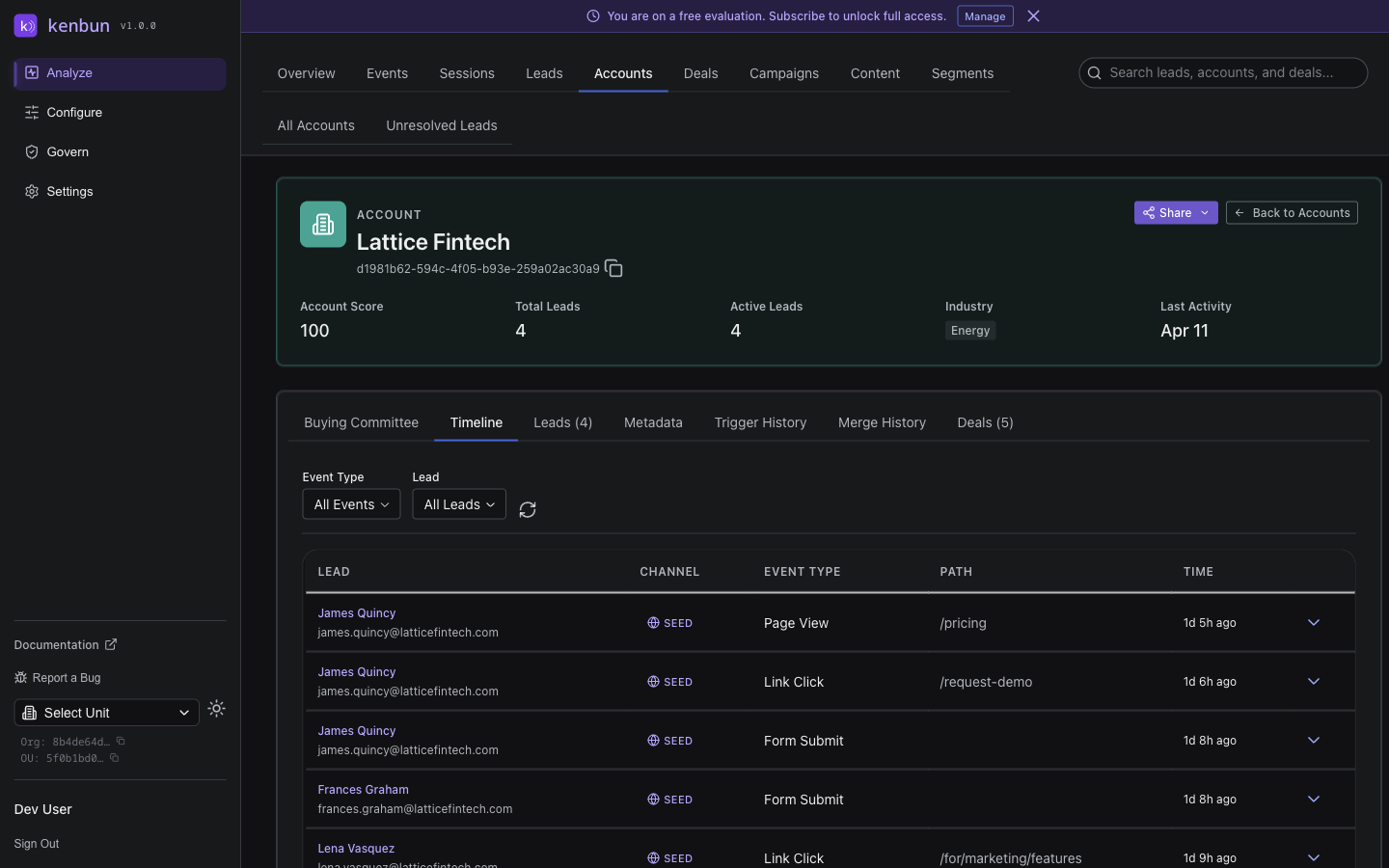
The engagement timeline shows all activity across the account in chronological order. Each entry includes the timestamp, which contact took the action, the event type, and the source channel.
Use the timeline to:
- Spot multi-threading (multiple contacts engaging simultaneously)
- Identify which content resonates with the account
- Track the buyer's journey across stakeholders
- See engagement surges in real time
Leads Tab
See all contacts associated with the account:
| Column | Description |
|---|---|
| Alias | Contact name or email |
| Engagement Level | Individual lead engagement tier |
| Profile Level | Profile fit tier |
| Last Activity | When this contact last engaged |
Click any contact to navigate to their individual lead detail page.
Metadata Tab
View firmographic and company data collected through event properties, field mappings, and integrations. The Metadata tab is organized into three sections:
- Account Summary — Key attributes at a glance: company size, industry, employee count, and revenue range
- Identity — Domain, account name, and any identifiers used to recognize this account
- Account Properties — All other metadata fields collected for this account, including custom properties populated through integrations or field mappings
Score Breakdown
Click any Account Score value — either in the accounts list or on the account detail header — to open the Account Score Explain panel. This slideout shows only the account score breakdown; engagement and profile scores are not shown here because accounts aggregate activity across many contacts and do not have individual engagement or profile scores.
The panel displays:
- Rules matched — Each account scoring rule that applied to this account, with the rule name, the condition it evaluated, and the points it contributed
- Unmatched rules — A collapsible section listing any rules that did not match. Click Show N unmatched rules to see which criteria the account does not yet meet and what attribute changes would increase its score
- Account level badge — The account's current tier and a progress bar showing how far it is from the next level. If the account has reached the top level, a green Max level reached badge replaces the progress indicator
This breakdown is useful for explaining an account's score to a sales rep, identifying gaps in firmographic data, and understanding exactly which ICP criteria the account satisfies.
Creating Accounts
Accounts are created automatically when leads with new account_id values are detected. You can also create accounts manually:
- Click Create Account in the toolbar
- Enter the account name and domain
- The new account is created and you're taken to its detail page
Merging Accounts
When the same company exists under two separate account records — for example, because an import created a duplicate or two subsidiaries should be consolidated — you can merge them into one.
How to merge accounts:
- Open the account you want to archive (the source account)
- Click Merge Account in the account detail toolbar
- Select the account that should receive all the leads and deals (the target account)
- Review the summary and click Continue
- Confirm the merge by clicking Confirm Merge
After merging, all leads and deals from the source account are reassigned to the target account. The source account is archived and removed from the accounts list. The merge is recorded in the audit log.
This action is permanent and cannot be undone. Choose the target account carefully — it will become the single record representing this company.
The account detail page also shows a Merge History tab, where you can review past merges for that account.
Unresolved Leads
The Unresolved tab shows leads that have not yet been associated with an account. These are contacts whose email domain or account_id did not match an existing account.
From the Unresolved tab, you can:
- Assign to an existing account - Link a lead to a company already in your system
- Create a new account - Create a new account and assign the lead to it
Resolving unresolved leads ensures your account-level analytics are complete and accurate.
Bulk Actions
Select multiple accounts using the checkboxes to perform bulk operations:
- Select individual accounts - Check the box next to each account
- Select all filtered accounts - Check the header checkbox to select everything matching your current filters
- Export to CSV - Download account data (domain, name, score, lead count, surge status) for reporting or analysis
- Delete accounts - Permanently remove selected accounts and unlink their leads
Common Workflows
Prioritize Target Accounts
Goal: Focus sales effort on the accounts that matter most
- Filter to the Last 7 Days date range to see recently active accounts
- Look for accounts with high account scores and multiple active leads
- Click into top accounts to review their engagement timelines
- Share promising accounts to Slack from the detail page
Identify Multi-Threaded Opportunities
Goal: Find accounts where multiple stakeholders are engaged
- Sort by # of Leads to find accounts with the most contacts
- Open the account detail page
- Review the leads table to see engagement levels across contacts
- Check the engagement timeline for coordinated activity patterns
Monitor Account Health
Goal: Track engagement trends across key accounts
- Search for a specific account by name or domain
- Open the account detail page
- Review the engagement timeline for recent activity
- Check whether active lead count is growing or shrinking
- Note which channels are driving the most engagement
Resolve Unmatched Leads
Goal: Ensure all leads are properly grouped into accounts
- Switch to the Unresolved tab
- Review leads that have not been assigned to accounts
- Assign each lead to an existing account or create a new one
- Return to the All tab to see updated account-level metrics
Export Account Data for Reporting
Goal: Generate reports for leadership or sales reviews
- Apply filters to narrow down to the accounts you need
- Optionally select specific accounts using checkboxes
- Click Export to download a CSV file
- Use the CSV in your reporting tools or spreadsheets
Best Practices
1. Keep Account Data Clean
Regularly visit the Unresolved tab to assign orphaned leads. Unresolved leads mean your account-level metrics are incomplete -- you might miss that a "Target" account has more engaged contacts than you realize.
2. Combine Account Score with Engagement
Account scores measure firmographic fit (company size, industry, revenue). Pair this with engagement data to find your best opportunities:
- High account score + Multiple active leads = Top priority
- High account score + No recent activity = Needs re-engagement
- Low account score + High engagement = Worth investigating, may not be ideal fit
3. Use Date Ranges Strategically
- Use Last 7 Days for daily/weekly sales stand-ups
- Use Last 30 Days for monthly pipeline reviews
- Use Last 90 Days for quarterly business reviews
- Use All Time to audit account coverage
4. Review Engagement Timelines Before Outreach
Before reaching out to an account, check its engagement timeline. Understanding what content they have consumed and which contacts are active helps you personalize your outreach and avoid redundant touches.
Troubleshooting
Accounts Not Appearing
Problem: Expected accounts are missing from the list.
Solution:
- Verify that ABM is enabled in Configure > Settings > Scoring Settings
- Check your date range filter -- it may be excluding older accounts
- Ensure leads have
account_idset in their events or metadata - Search by domain to find specific accounts
Account Score Shows Zero
Problem: An account exists but its score is 0.
Solution:
- Verify that Account Scoring Rules are configured and enabled
- Check that Account Field Mappings are extracting metadata from events
- Ensure the account has metadata that matches your scoring rule conditions
Engagement Timeline Is Empty
Problem: No events appear in the account's engagement timeline.
Solution:
- Verify that leads linked to this account have recent events
- Check the date range on the timeline view
- Confirm that events were successfully ingested for these leads
Leads Not Grouped Under the Right Account
Problem: Contacts from the same company appear under different accounts.
Solution:
- Ensure consistent
account_idvalues across all events for the same company - Use the Unresolved tab to manually assign misplaced leads
- Configure Profile Mappings to normalize account identification from email domains
API Access
Manage accounts programmatically:
- GET /accounts - List all accounts
- GET /accounts/:id - Get account detail with leads and metadata
- POST /accounts/:id/merge - Merge a source account into a target account
Contact support or see the API Reference for additional account-level endpoints.
Related Pages
- Leads - View individual lead profiles and scores
- Events - See the actions driving account engagement
- Sessions - Understand browsing behavior patterns
- ABM Overview - Learn about Account-Based Marketing in kenbun
- Account Scoring Rules - Configure firmographic scoring
- Account Levels - Set up account tier thresholds
- Account Triggers - Automate account-based notifications