Account-Based Marketing (ABM)
kenbun's Account-Based Marketing features help you identify, track, and engage high-value accounts. Instead of scoring individual leads in isolation, ABM enables you to understand engagement at the account level and orchestrate coordinated campaigns.
What is ABM in kenbun?
Account-Based Marketing in kenbun automatically groups leads from the same company and provides:
- Account-level engagement tracking - See collective activity across all contacts at an account
- Account scoring - Score accounts based on firmographic attributes and collective behavior
- Account-level triggers - Set up notifications when accounts hit engagement thresholds
- Unified account view - View all contacts, activity, and engagement for each account in one place
When to Use ABM
ABM features are ideal when:
- You sell to enterprises with multiple stakeholders
- Sales cycles involve decision-making committees
- You need to track engagement across an entire organization
- Individual lead scores don't capture full account readiness
- You want to identify which accounts to prioritize for outreach
Core ABM Concepts
Accounts
Accounts represent companies or organizations. kenbun automatically creates accounts by grouping leads with matching account_id values or email domains. Each account aggregates:
- All associated leads (contacts)
- Combined engagement score
- Account-level metadata (company size, industry, etc.)
- Surge activity across all contacts
Account Scoring
Account scoring works differently from lead scoring:
- Lead scoring evaluates individual contact engagement
- Account scoring evaluates firmographic fit (company size, industry, revenue, etc.)
Account scores are based on account attributes, not events. For example:
- +50 points if company size is "Enterprise"
- +30 points if industry is "Technology"
- +20 points if country is "United States"
Account Levels
Similar to Engagement Levels for leads, Account Levels categorize accounts based on their account score:
- Target - High-value accounts that match your ICP
- Qualified - Good fit accounts worth pursuing
- Standard - Average fit accounts
- Low Priority - Accounts outside your ideal profile
Account Engagement Timeline
The engagement timeline shows all activity across an account:
- Which contacts are engaging
- What actions they're taking
- When engagement is increasing
- Channel breakdown (email, website, product)
This helps you understand the full picture of account interest.
ABM Feature Overview
Account Management
Navigate to Analyze > Accounts to:
- View all accounts with engagement and score data
- Filter by account level, engagement, or date range
- Search by company name or domain
- Sort by recent activity or score
- Bulk export account data
See Account Management for details.
Account Scoring Rules
Configure scoring rules in Configure > Scoring to:
- Create rulesets for account-level scoring
- Define rules based on firmographic attributes
- Assign weights to different criteria
- Test scoring rules against your account data
See Account Scoring Rules for details.
Account Levels
Set up account levels in Configure > Levels to:
- Define score thresholds for account tiers
- Create custom level names and colors
- Manage multiple level rulesets for different segments
- Auto-categorize accounts as they're created
See Account Levels for details.
Account Field Mappings
Configure field mappings in Configure > Mapping > Account to:
- Map event properties to account metadata
- Extract company information from lead events
- Standardize account data across sources
- Enrich accounts automatically
See Mapping for the configuration guide, or Account Field Mappings for API details.
Account Triggers
Set up automated notifications when accounts:
- Reach a certain engagement level
- Hit surge thresholds across multiple contacts
- Enter specific account levels
- Show buying signals
See Account Triggers for details.
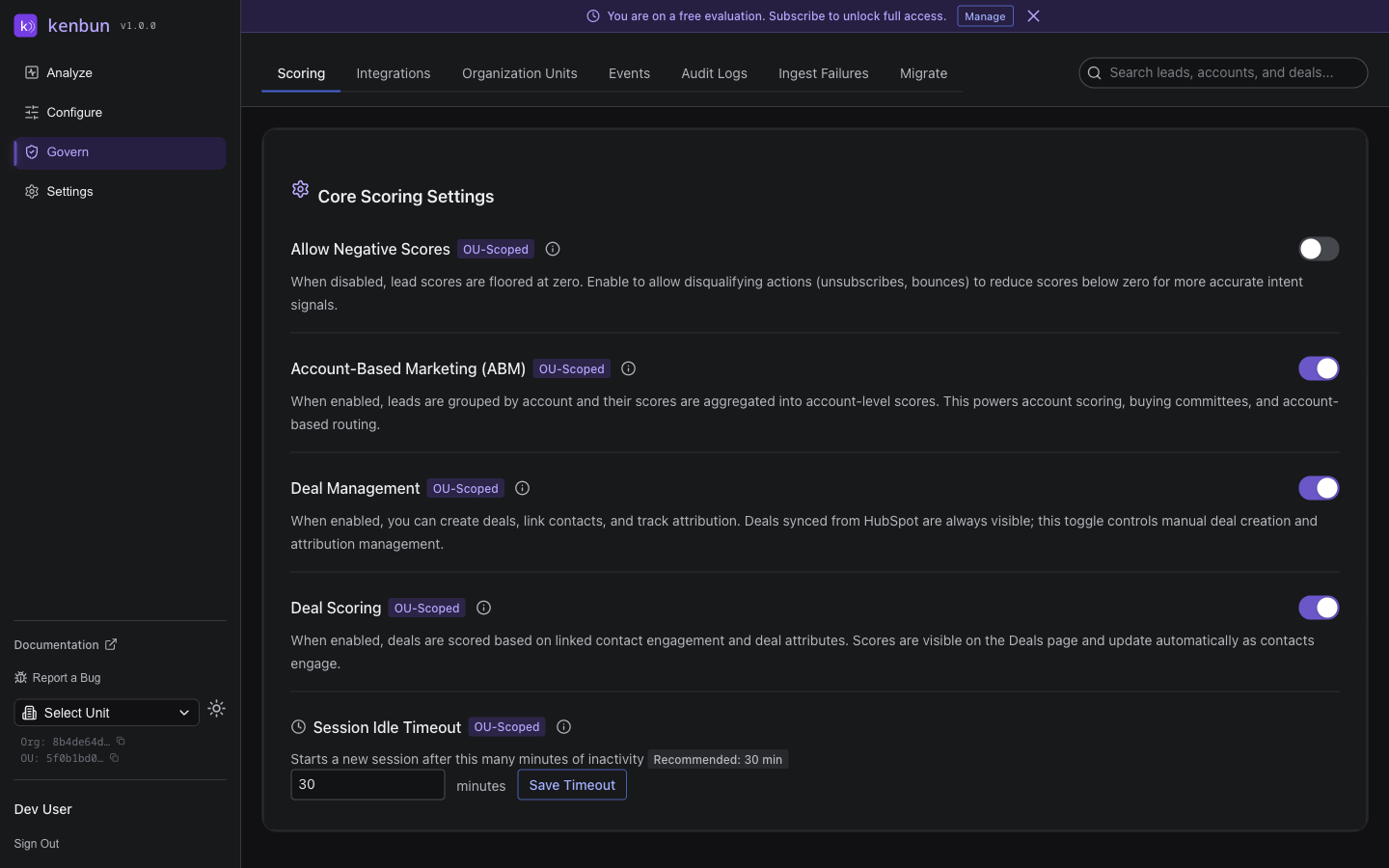
Enabling ABM Features
ABM features can be toggled on or off in your workspace:
- Navigate to Configure > Settings > Scoring Settings
- Find the Account-Based Marketing section
- Toggle Enable ABM Features to show/hide ABM UI
When ABM is enabled:
- Accounts tab appears in the Analyze section
- Account Scoring Rules and Account Levels appear in Configure
- Account-level widgets appear on your dashboard
- Account metadata becomes available in triggers and filters
When disabled, all ABM features are hidden but your configuration is preserved.
Getting Started with ABM
Step 1: Link Leads to Accounts
Ensure your leads have account information:
Option A: Include account_id in events
kenbun.track('Page View', {
  account_id: 'acct_12345',
  // other event properties
});
Option B: Set account_id via API
PUT /leads/{leadID}
{
  "account_id": "acct_12345"
}
Option C: Use Profile Mappings
Create a Profile Mapping that sets account_id based on email domain or other criteria. See Mapping for setup instructions.
Step 2: Configure Account Field Mappings
Define how account metadata is extracted:
- Navigate to Configure > Mapping > Account
- Click Add Mapping
- Map event properties to account fields:
- Map
company_size→company_size - Map
industry→industry - Map
country→country
- Map
Step 3: Set Up Account Scoring Rules
Define what makes a high-value account:
- Navigate to Configure > Scoring and select the Account tab
- Click New Ruleset (e.g., "Enterprise Target Accounts")
- Add rules:
- If
company_sizeequalsenterprise→ +50 points - If
industryequalstechnology→ +30 points - If
employeesgreater than1000→ +40 points
- If
Step 4: Configure Account Levels
Create tiers for account prioritization:
- Navigate to Configure > Levels and select the Account tab
- Create a new ruleset (e.g., "Account Tiers")
- Define levels:
- Target - 80-100 points (purple)
- Qualified - 50-79 points (blue)
- Standard - 20-49 points (green)
- Low Priority - 0-19 points (gray)
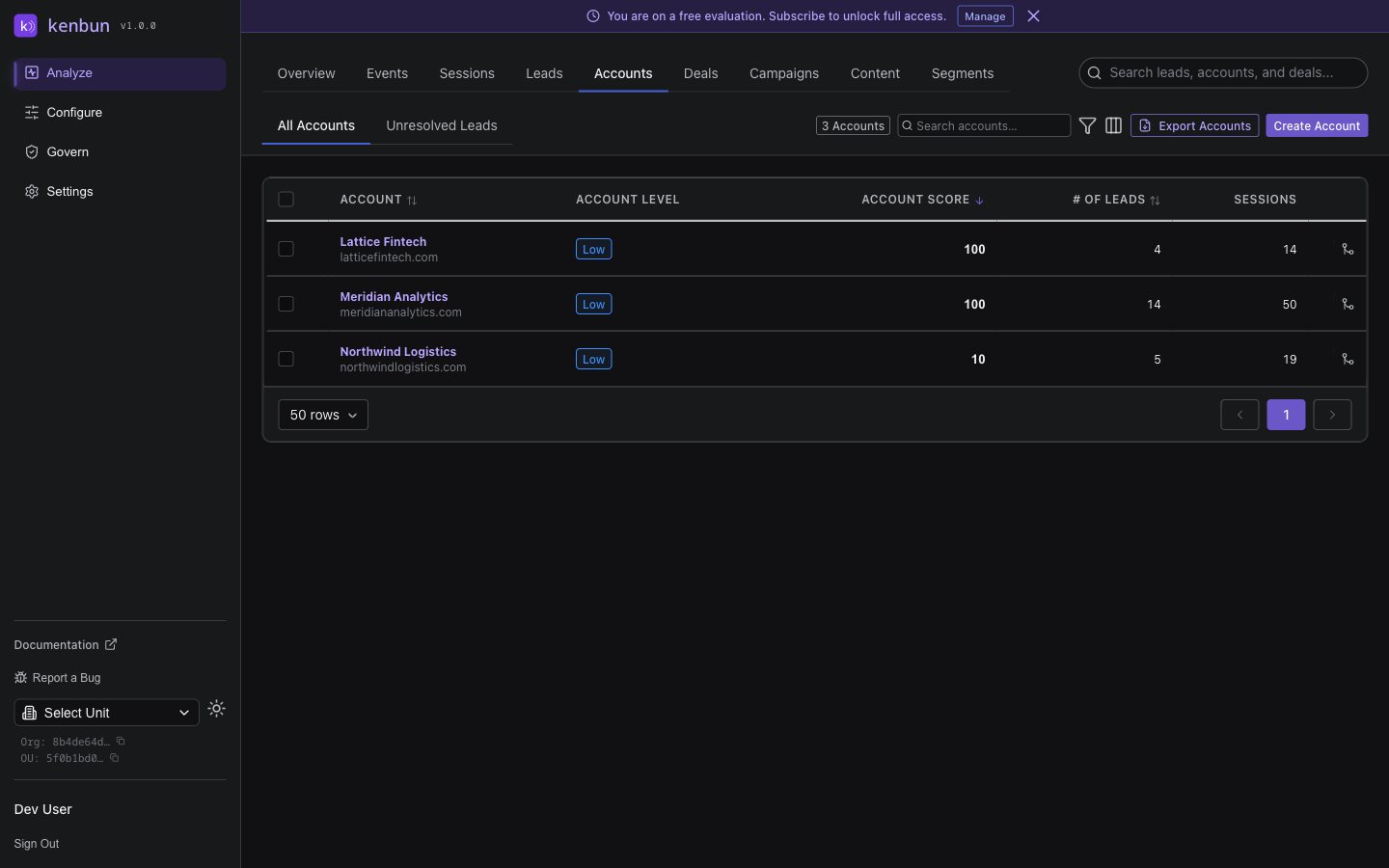
Step 5: Track Your Accounts
- Navigate to Analyze > Accounts
- View all accounts with their scores and levels
- Click an account to see:
- Engagement timeline
- Surge activity
- Account metadata
Step 6: Set Up Account Triggers
Create notifications for high-value account activity:
- Navigate to Configure > Triggers
- Create triggers using account-level conditions
- Get notified in Slack when target accounts engage
ABM Best Practices
Start with Your ICP
Define your Ideal Customer Profile before configuring account scoring:
- What company size is ideal?
- Which industries convert best?
- What geographic regions do you target?
- What budget ranges match your pricing?
Use these criteria as your scoring rules.
Monitor Engagement Patterns
Watch for account-level signals:
- Multi-threading - Multiple contacts engaging simultaneously
- Cross-functional interest - Different departments showing interest
- Sustained engagement - Regular activity over weeks
- Surge behavior - Sudden spikes in account-wide activity
Align Sales and Marketing
Use account levels to coordinate outreach:
- Target accounts - Assign to sales for direct outreach
- Qualified accounts - Nurture with targeted campaigns
- Standard accounts - Include in general marketing
- Low priority - Keep on radar but don't prioritize
Score Firmographics, Not Behavior
Remember:
- Account scoring = Company attributes (size, industry, revenue)
- Lead scoring = Individual engagement (page views, email opens)
- Combined insight = High-value accounts with engaged stakeholders
A qualified account (firmographics) with a hot lead (engagement) is your highest priority.
Common Use Cases
Enterprise Sales
Track multiple stakeholders across long sales cycles:
- Identify all contacts at target accounts
- Monitor which departments are engaging
- See when champions emerge
- Coordinate sales and marketing touchpoints
Partner Programs
Manage accounts across partner relationships:
- Track engagement by partner-referred accounts
- Score accounts based on partner tier
- Notify partners of account activity
Customer Expansion
Identify expansion opportunities:
- Track engagement across existing customer accounts
- Spot new departments showing interest
- Identify potential champions for upsells
- Monitor account health indicators
Pipeline Acceleration
Focus resources on ready accounts:
- Filter for high-score + high-engagement accounts
- Track surge behavior indicating buying intent
- Prioritize outreach to most engaged accounts
Troubleshooting
Leads Not Grouped into Accounts
Problem: Leads are showing up individually instead of grouped by account.
Solution: Ensure leads have account_id set:
- Include
account_idin tracking events - Set
account_idvia API or CSV import - Create Profile Mappings that derive
account_idfrom email domain
Account Scores Not Updating
Problem: Account scores remain at 0 or don't change.
Solution:
- Verify Account Scoring Rules are created and enabled
- Check that Account Field Mappings are configured
- Ensure account metadata is being populated from events
- Confirm primary ruleset is selected
Missing Account Metadata
Problem: Account details are blank or incomplete.
Solution:
- Configure Account Field Mappings to extract data from events
- Include company properties in your event payloads
- Import account data via CSV with account metadata
- Use enrichment integrations to populate firmographic data
API Access
All ABM features are available via API. For a full list of account-related API endpoints, see the API Reference.