Profile Scoring
Profile Scoring evaluates the attributes of a lead — their job title, seniority, industry, company size, geography — and produces a fit score. Unlike engagement scoring, which tracks behavior, profile scoring tells you how well the person matches your Ideal Customer Profile, regardless of whether they've engaged.
When To Use Profile Scoring
Profile scoring is the right tool for:
- Filtering out high-engagement leads who aren't a fit (competitors, students, tire-kickers).
- Routing inbound demos — a Director at a 500-person company gets a different SDR than a freelancer.
- Building combined "Strong Fit + Hot" segments for sales prioritization.
- Powering ABM-adjacent outreach where company size and industry drive the play.
For pure firmographic scoring at the company level, see Account Scoring. Profile scoring runs at the individual lead level.
Prerequisite: Profile Mapping
Profile scoring rules evaluate fields on the lead's profile metadata. Those fields don't materialize on their own — they come from event metadata mapped into standard profile fields. Before you can score, you need to set up Profile Mapping.
The typical setup:
- Identify the profile fields you want to score on (title, role, industry, country).
- Configure profile mappings so incoming events populate those fields.
- Build profile scoring rules that match on those fields.
Without mapping, your rules have nothing to evaluate.
Configuring Profile Rules
Start From a Template
Open Configure > Scoring and switch to the Profile tab. If you have no rules, you'll see template cards. The most relevant for profile scoring:
- Enterprise ABM — scores decision-maker titles (VP, Director, C-Level) at premium weights and accounts for company size, revenue, and industry fit.
Click Load Template to seed a starting model.
Create a Rule From Scratch
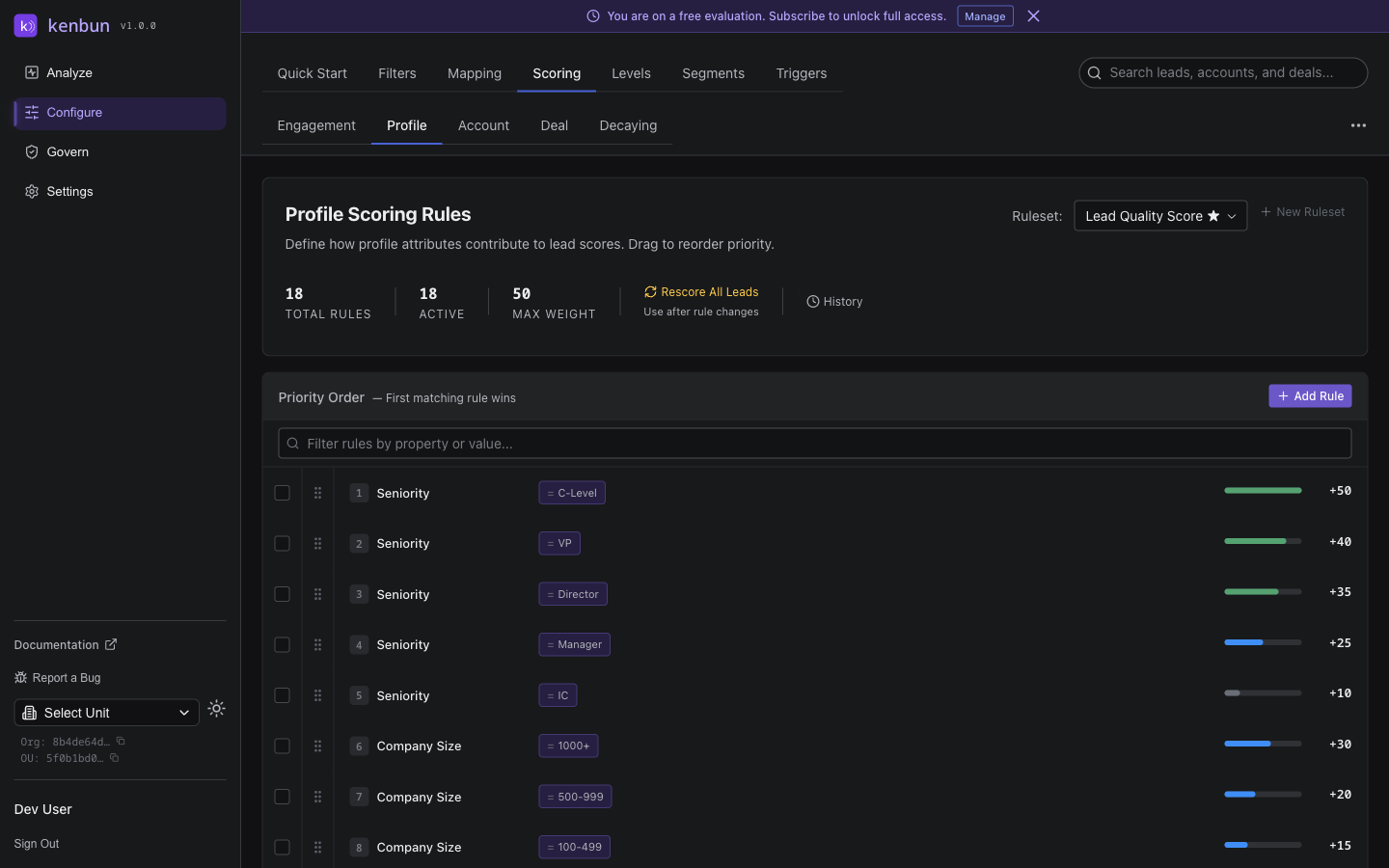
- Navigate to Configure > Scoring > Profile.
- Click New Rule.
- Configure:
- Profile Property — the field to evaluate (e.g.,
job_title,industry,country) - Condition — how to match (equals, contains, starts with, ends with, gt/gte/lt/lte)
- Comparison Value — the target value
- Weight — points to add when matched
- Profile Property — the field to evaluate (e.g.,
- Click Save Rule.
Common Property Patterns
| Property | Condition | Value | Weight | Intent |
|---|---|---|---|---|
job_title | contains | "VP" | +30 | Senior decision-maker |
job_title | contains | "Director" | +25 | Mid-senior decision-maker |
seniority | equals | "C-Level" | +40 | Top of org |
industry | equals | "Technology" | +20 | Target vertical |
country | equals | "United States" | +15 | Primary market |
company_size | gte | "100" | +20 | Mid-market or larger |
Property names are case-sensitive and must match the field names from your profile mappings exactly.
Example Models
Mid-Market SaaS
seniority equals "VP" → +35
seniority equals "Director" → +25
industry equals "Technology" → +20
company_size gte "100" → +20
country in [US, UK, CA, AU] → +15
A perfect-fit lead at a 500-person tech company with a VP title gets +90.
Healthcare Vertical
industry equals "Healthcare" → +50
seniority in [VP, Director, C-Level] → +30
country equals "United States" → +20
Disqualifier Pattern (Use Sparingly)
job_title contains "student" → -50
email contains "gmail.com" → -10
Negative profile scoring is rare — most teams prefer to filter unfit leads in the UI rather than score them down.
Hard disqualification. When a lead should be removed from the pipeline entirely (no contact path, competitor, hard bounce), use a hard-disqualification rule instead of a large negative weight. Change Rule type to Hard disqualify in the rule slideout. See the Hard Disqualification guide for when to use it and when to stick with soft negatives.
Score Explain
On the lead detail page, click Profile Score to open Score Explain. The panel shows:
- Each rule that matched, the weight it contributed, and the property value that satisfied it.
- A Show N unmatched rules disclosure that lists rules the lead failed to match — useful for understanding what would need to change for the score to improve.
- A Max level reached badge when the lead has hit the top profile tier.
Best Practices
Anchor To Closed-Won
Look at the profile attributes of leads who actually converted. Weight rules so the median closed-won lead hits "Strong Fit" or above on the Profile Levels you've configured.
Keep It To 5–10 Rules
A profile model with 30 rules is hard to maintain and rarely outperforms one with 8 well-chosen rules. Pick the attributes that actually predict conversion.
Update Mappings First
If you want to score on a property that isn't yet in your mappings, configure the mapping before the scoring rule. Otherwise the rule will silently match nothing.
Test Rules Before Activation
Click Test Rule and pick a few leads — including some you'd consider "perfect fit" and some you wouldn't — to see whether the scoring matches your intuition. Adjust before deploying.
Troubleshooting
Most Leads Score 0
- Profile mappings aren't configured — leads have no metadata to score against.
- Rule property names don't match mapping field names.
- Comparison values don't match the data format (e.g.,
"VP"vs"VP of Engineering"— usecontains, notequals).
Some Leads Score Far Higher Than Expected
- Rules are stacking — a lead matched both a "VP" rule and a "Director" rule because their title contains both. Use mutually exclusive conditions or order rules so the more specific match wins.
A Profile Score Doesn't Update After A Mapping Change
- Profile scores recompute on attribute change, but historical data may need to be rescored. Use Preview Impact → Rescore to apply changes to existing leads.
Rule Weights Won't Save
- Weights are whole numbers.
10.5and non-numeric text are rejected with an inline error before save.