Engagement Scoring
Engagement scoring rewards leads for the actions they take — opening emails, viewing pages, attending webinars, downloading content. The score rises on activity and decays during inactivity, giving you a real-time read on which leads are currently engaging with your business.
When To Use Engagement Scoring
Engagement is the right scoring surface for:
- Daily outreach prioritization — sort leads by engagement score to find who's hot today.
- Real-time alerts — fire a Slack notification when a lead crosses an engagement threshold.
- Re-engagement campaigns — find leads whose scores have dropped from "Hot" back to "Cold."
- Conversion triggers — automate a hand-off when a lead's engagement crosses a threshold.
If you want to score who someone is (independent of behavior), use Profile Scoring instead.
Configuring Engagement Rules
Start From a Template
If you don't have rules yet, the empty state shows template cards. Each is a pre-built scoring model for a common motion:
- SaaS Scoring — demo requests, trial signups, product engagement.
- Product-Led Growth — feature activation, integrations, team invites; negative scoring for trial churn.
- Content Marketing — blog depth, asset downloads, webinar attendance, social sharing.
Click Load Template on any card. The rules pre-populate; you can tune weights from there.
Create a Rule From Scratch
- Navigate to Configure > Scoring (engagement is the default tab).
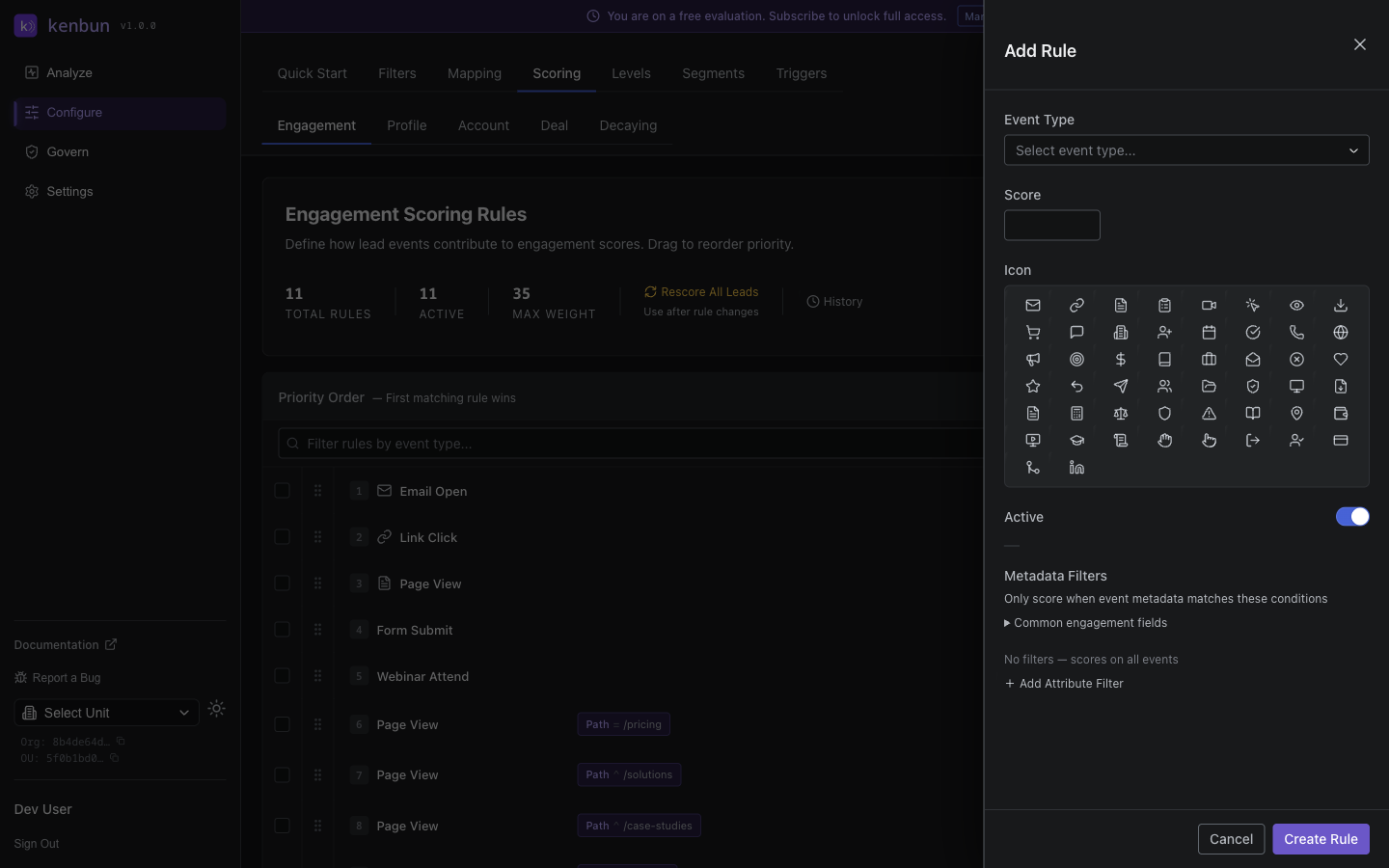
- Click New Rule.
- Configure:
- Event Type — pick from existing event types or choose Custom... to enter a new one.
- Score — positive or negative whole number. Decimals are rejected.
- Ruleset — which collection this rule belongs to.
- Active — leave on unless you're staging the rule for later.
- Time Range — optional start and end dates for seasonal rules.
- Icon — visual indicator that appears beside the rule.
- Click Create Rule.
Attribute Filters
Make rules more specific by adding metadata filters. The supported operators:
| Operator | Matches when... |
|---|---|
| Equals | Metadata value exactly matches |
| Contains | Metadata value includes the text |
| Does not contain | Metadata value does not include the text |
| Starts with | Metadata value begins with the text |
| Regex match | Metadata value matches the regular expression |
>=, >, <=, < (number) | Numeric comparison |
| Exists | The metadata field is present (no value needed) |
Regex patterns are validated when you save the rule, so you'll see a clear error if a pattern is malformed before any leads are affected.
Example Rules
Standard Engagement
Event Type: Email Open
Score: +5
Ruleset: General Engagement
Event Type: Webinar Attend
Score: +25
Ruleset: Campaign Response
Negative Scoring for Risk Indicators
Event Type: Email Bounced
Score: -10
Ruleset: Engagement Quality
Event Type: Unsubscribed
Score: -20
Ruleset: Engagement Quality
Time-Based Promotion
Event Type: Product Trial Start
Score: +30
Ruleset: PQL Scoring
Time Range: Mar 1 - Jun 30
Rule Order Matters When Filters Overlap
Rules within a ruleset have a priority order. When multiple rules match the same event with different attribute filters, kenbun credits the first matching rule by priority. Drag rules up or down to reorder.
Example. If you have a general Page View rule worth +1 and a more specific rule for Page View where path contains /pricing worth +10, place the pricing rule above the general rule. Without that ordering, pricing visits get +1 instead of +10.
Testing Rules
Click Test Rule in the rule editor and pick a lead from the dropdown (your most recent 20 leads). The test result shows:
- Whether the rule matches and why.
- The lead's current engagement score and projected score after the rule applies.
- The count of matching events for that lead.
Use this to calibrate weights — if the projected jump looks too aggressive or not aggressive enough, adjust before saving.
Bulk Actions
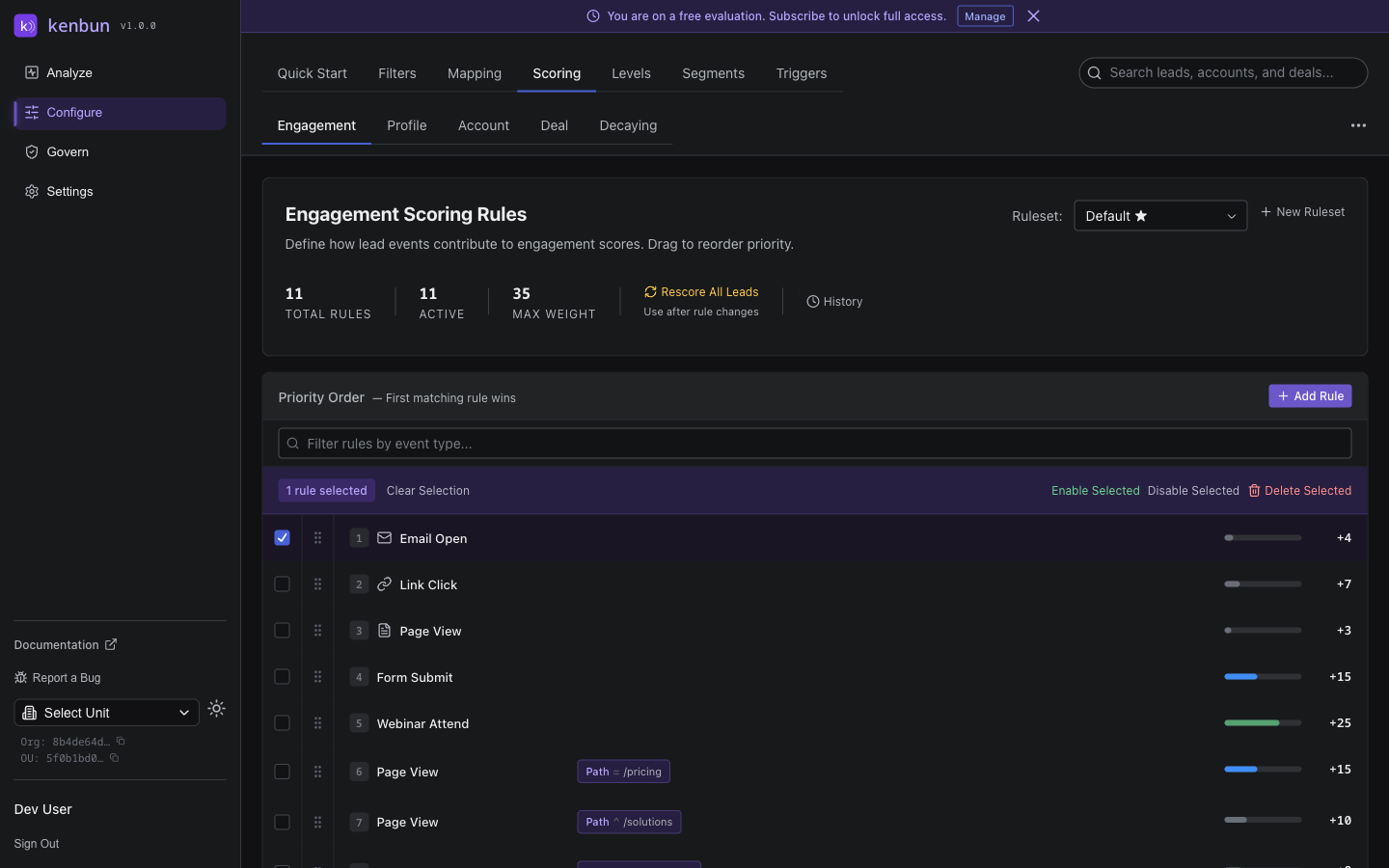
Select multiple rules with the row checkboxes to enable, disable, or delete them in one operation. Useful for:
- Disabling seasonal campaign rules after promotions end.
- Toggling experimental rule sets on or off.
- Mass-deactivating rules during data migrations.
Previewing Rescore Impact
After major rule changes, click Preview Impact next to the Rescore All Leads button. The preview is a dry run — no scores change, no triggers fire — but it shows:
- How many leads will be affected.
- How many will see increases vs. decreases vs. no change.
- The average score change.
- An estimate of how long the rescore will take.
Use it to catch surprises before you commit.
Troubleshooting
| Symptom | Likely Cause / Fix |
|---|---|
| Rule not triggering | Verify event type spelling (case-sensitive) and that the rule is active |
| Incorrect point values | Check for conflicting rules; verify priority order if filters overlap |
| Weight not saving | Whole numbers only; 10.5 is rejected |
| Regex filter errors | Check that parentheses and brackets are balanced |
| Unexpected scores | Open Score Explain on the lead detail page to see which rules matched |
For deeper debugging, the Score History page shows every score change per lead with the rule that caused it.