Quick Start
The Quick Start wizard helps you set up a complete lead scoring configuration in minutes. Instead of manually creating scoring rules, levels, filters, segments, and triggers one by one, Quick Start generates a full working configuration based on your industry and scoring preferences.
Why Use Quick Start?
Building a lead scoring model from scratch requires coordinating many moving parts: scoring rules for different event types, engagement levels to categorize leads, inorganic activity filters to prevent false signals, segments to group leads, and triggers to automate follow-up. Quick Start handles all of this in a single guided workflow.
Quick Start is ideal when you are:
- Setting up kenbun for the first time
- Launching a new scoring model for a different business unit
- Starting fresh after experimenting with manual configuration
How the Wizard Works
The Quick Start wizard walks you through four steps:
Step 0: Welcome
When you first sign up, kenbun opens a welcome screen that explains what the platform does and guides you into the wizard. The wizard is also available any time at Configure > Quick Start.
Step 1: Choose Your Industry
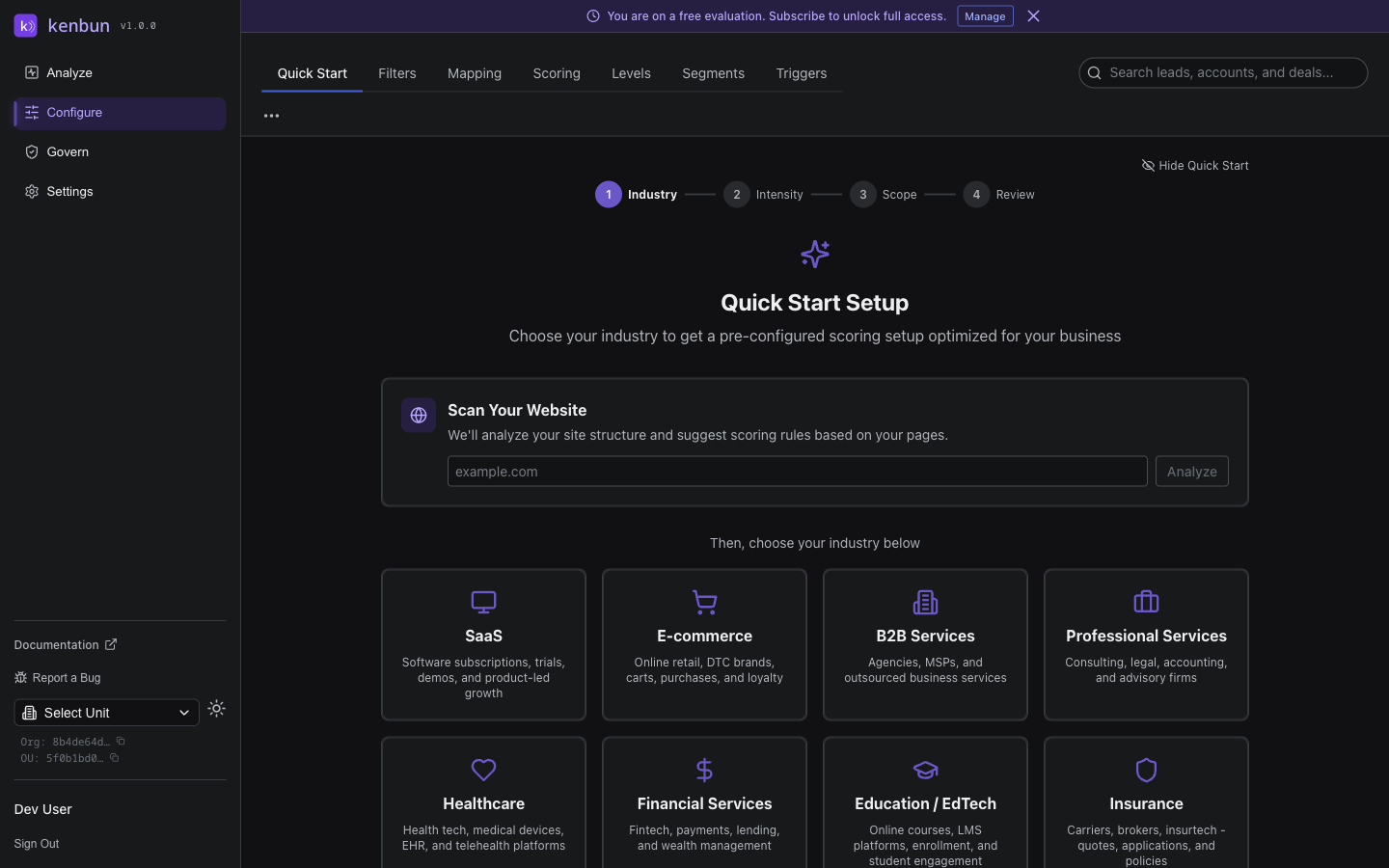
At the top of this step, you can optionally enter your website URL to let kenbun automatically suggest scoring rules based on your site's pages. This is covered in detail below.
Below the website analyzer, select the industry that best matches your business. Each industry template is designed around the specific engagement patterns and buying signals typical of that vertical.
Available industries:
| Industry | Best For |
|---|---|
| SaaS | Software subscriptions, trials, demos, and product-led growth |
| E-commerce | Online retail, DTC brands, carts, purchases, and loyalty |
| B2B Services | Agencies, MSPs, and outsourced business services |
| Professional Services | Consulting, legal, accounting, and advisory firms |
| Healthcare | Health tech, medical devices, EHR, and telehealth platforms |
| Financial Services | Fintech, payments, lending, and wealth management |
| Education / EdTech | Online courses, LMS platforms, enrollment, and student engagement |
| Insurance | Carriers, brokers, insurtech — quotes, applications, and policies |
Scan Your Website (Optional)
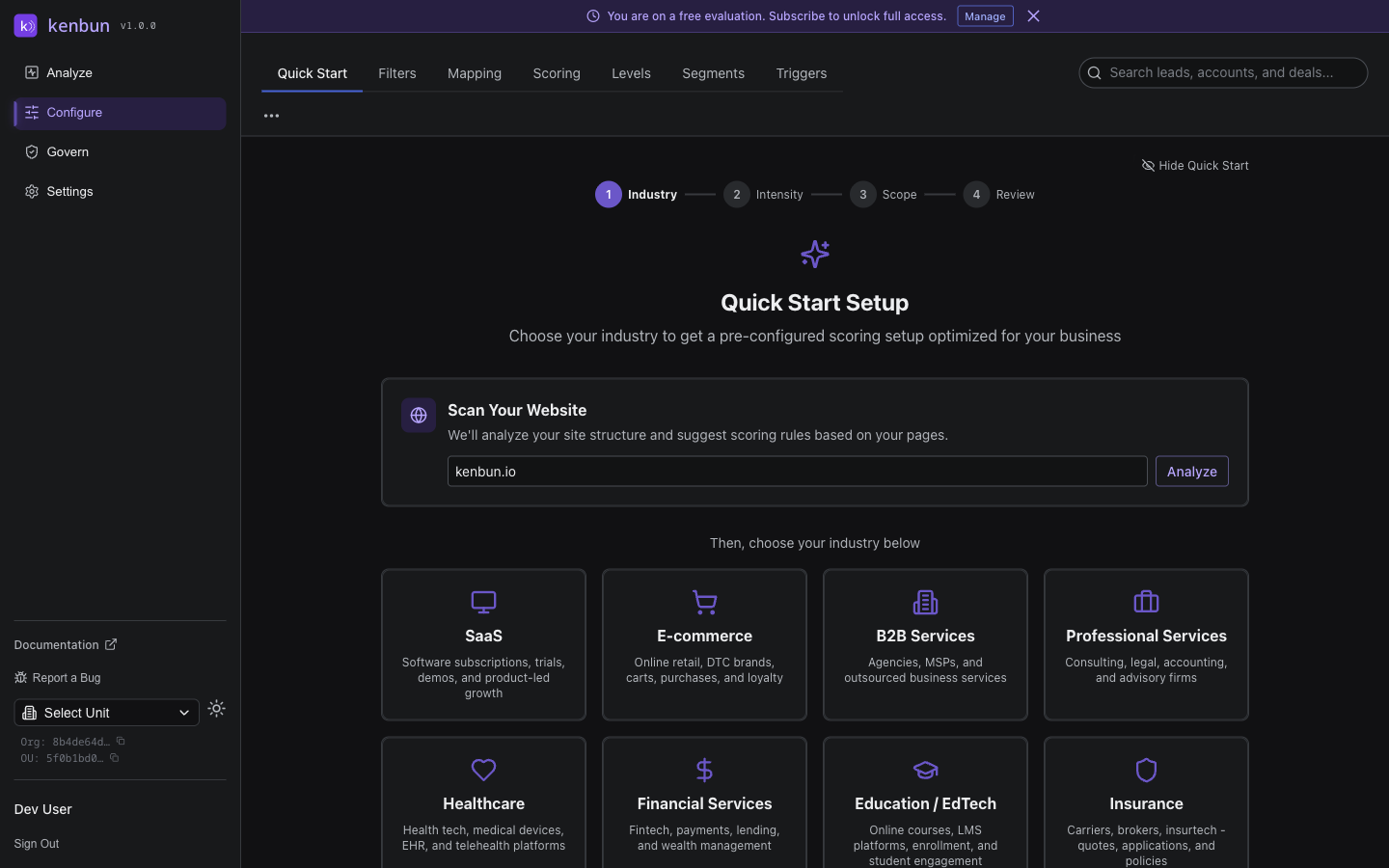
Before selecting your industry, you can enter your website URL to automatically discover page-view scoring rules. kenbun crawls your site's page structure, categorizes pages by buyer intent (demo pages, pricing pages, blog posts, and so on), and proposes a scoring rule for each category.
To use the website analyzer:
- Enter your public website URL (e.g.,
acme.comorhttps://www.example.com) - Click Analyze
- Review the proposed rules — each shows the page category, example URLs found, and a suggested point value
- Toggle individual rules on or off
- Adjust point values if the suggestions do not match your expectations
These site-based rules are applied alongside your industry preset when you complete the wizard. For example, if kenbun finds /pricing and /demo pages on your site, it will create scoring rules that give extra points to leads who visit those high-intent pages.
Step 2: Select Scoring Intensity
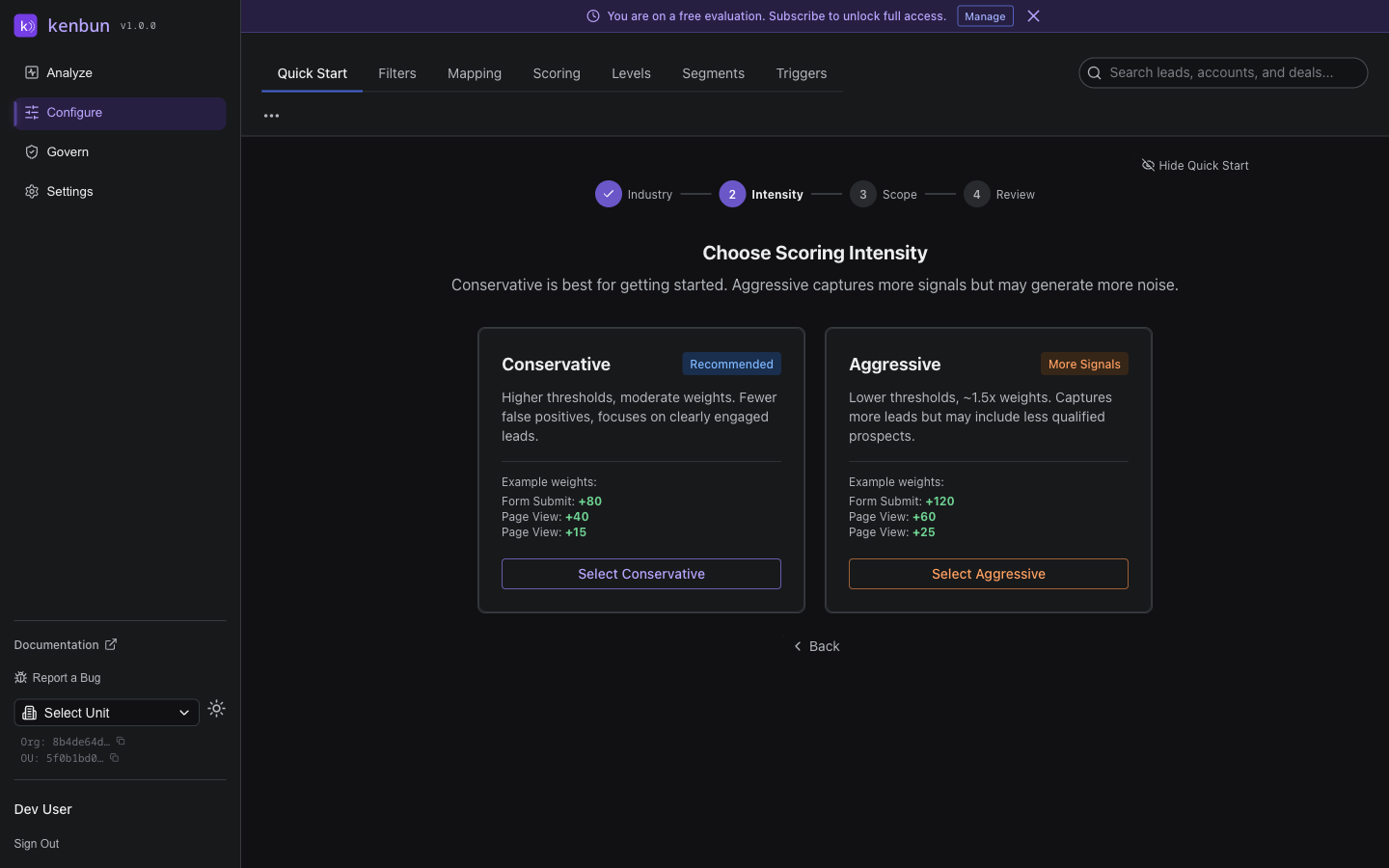
Choose how aggressively you want to score lead activity:
- Conservative (Recommended): Higher thresholds, moderate weights. Fewer false positives — focuses on clearly engaged leads. Best when you want to avoid noise and only surface the most qualified leads.
- Aggressive: Lower thresholds, ~1.5x weights. Captures more leads but may include less qualified prospects. Best when you want to capture every possible signal and your sales team can handle a higher volume of leads.
Step 3: Configure Scope
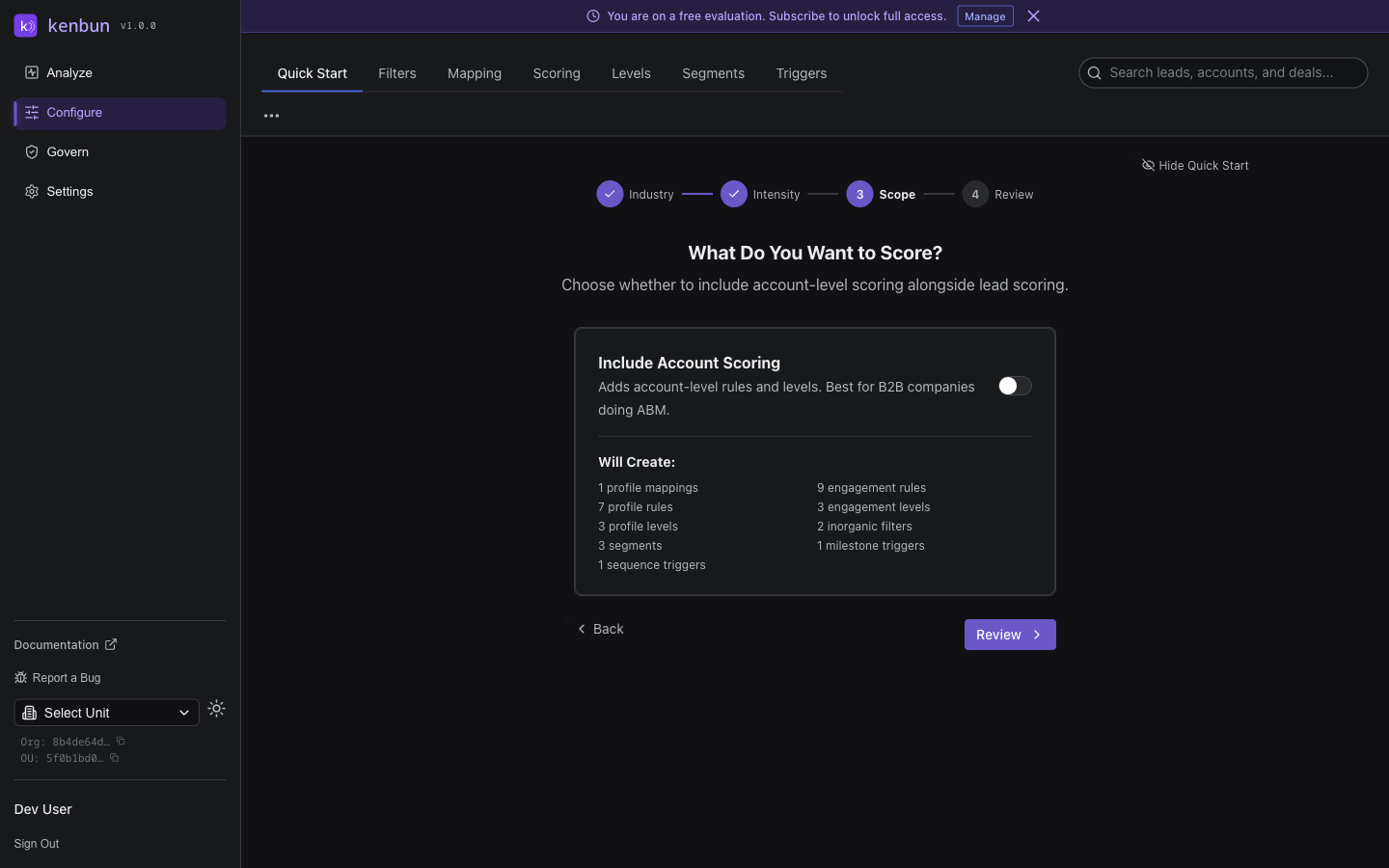
Choose whether to include account-level configuration alongside lead-level scoring:
- Lead scoring only: Creates engagement scoring rules, profile scoring rules, levels, filters, segments, and triggers for individual leads.
- Include account scoring: Also creates account scoring rules and account levels. Toggle the Include Account Scoring switch to enable this. Best for B2B companies doing Account-Based Marketing (ABM).
Step 4: Review and Apply
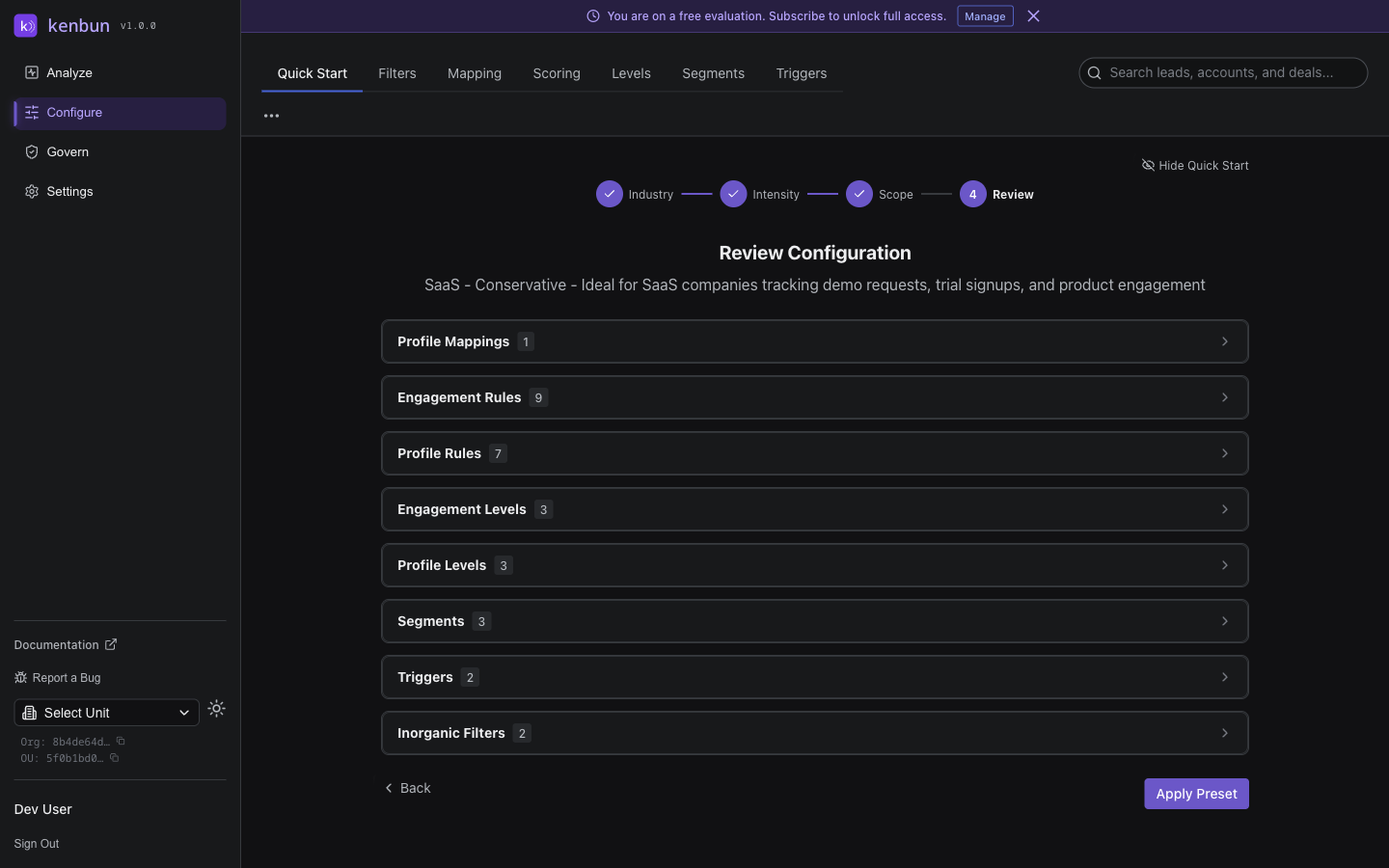
Review a summary of everything Quick Start will create, including:
- Engagement rules: Scoring rules for event types relevant to your industry
- Profile rules: Scoring rules based on lead attributes (job title, seniority, company size)
- Account rules: Scoring rules based on account attributes (if included)
- Engagement levels: Score ranges that categorize leads (e.g., Cold, Warm, Hot, Very Hot)
- Profile levels: Score ranges for lead fit quality
- Account levels: Score ranges for account quality (if included)
- Inorganic activity filters: Thresholds to detect automated or non-human engagement
- Segments: Pre-built lead groups based on common criteria
- Milestone triggers: Automated actions when leads cross score thresholds
- Sequence triggers: Automated actions when leads complete specific action sequences
Click Apply to create all configuration items at once. If you already have existing configuration, Quick Start will warn you before merging new items with your current setup.
After Quick Start
Once Quick Start completes, your configuration is fully active. You can:
- Customize point values: Navigate to Configure > Scoring to adjust individual rule weights
- Edit levels: Go to Configure > Levels to change score range boundaries
- Modify segments: Visit Configure > Segments to refine segment rules
- Tune triggers: Open Configure > Triggers to adjust thresholds and add webhook URLs
Quick Start creates a strong foundation. Think of it as a starting point that you refine over time based on how your leads actually behave.
Dismissing and Restoring Quick Start
Once you have applied a configuration (or prefer to set things up manually), you can hide the Quick Start tab:
- Click Hide Quick Start at the top of the wizard, or
- Open the overflow menu (three-dot icon) in the Configure header and uncheck Show Quick Start
To bring it back later, open the same overflow menu and check Show Quick Start.
Best Practices
Start with Quick Start, Then Customize
Apply a template first, then spend a week observing how scores distribute across your leads. Adjust point values and thresholds based on real data rather than guessing from scratch.
Match Industry to Engagement Pattern
Choose the industry that matches your lead engagement model, not necessarily your legal industry classification. A SaaS company selling to healthcare organizations should typically choose SaaS because the buying signals (demos, trials, pricing pages) align with SaaS engagement patterns.
Use Conservative for New Deployments
If this is your first time setting up lead scoring, start with Conservative intensity. It is easier to lower thresholds once you understand your data than to recalibrate after flooding your sales team with low-quality alerts.
Related Pages
- Configure Overview -- Full overview of the Configure section
- Scoring Rules -- Detailed guide to creating and managing scoring rules
- Levels -- How engagement and profile levels work
- Triggers -- Setting up automated actions
- Site Scoring Analysis API -- API reference for the site analysis endpoint
- Billing and Subscription -- Your plan, trial, and event limits