Profile Mapping
Profile Mapping links event metadata fields to lead profile properties. This is the prerequisite for Profile Scoring — the rules that evaluate how well a person matches your ideal customer profile (ICP). If a lead never has profile metadata populated, profile scoring rules have nothing to evaluate and silently match nothing.
Profile mappings answer the question: "How do we extract who someone is from the data we already collect?"
For shared mapping concepts (source vs. target, update behavior, backfilling, history), see the Mapping overview. This page covers profile-specific UI, examples, and pitfalls.
When To Use Profile Mapping
You want profile mapping any time you care about who the person is, not just what they're doing. Common signals worth mapping:
- Seniority and role — VP vs. Manager vs. Individual Contributor changes how aggressively you reach out.
- Function — Marketing-Ops champions buy differently than Sales-Ops champions.
- Job title — useful as a free-text fallback when seniority and function aren't standardized.
- Geography or language — regional segmentation, GDPR routing, language-specific nurture.
If you're running ABM, profile mapping is half of the picture — pair it with Account Mapping so you can score the person and the company they work for independently.
Setting Up Profile Mappings
Navigate to Configure > Mapping > Profile.
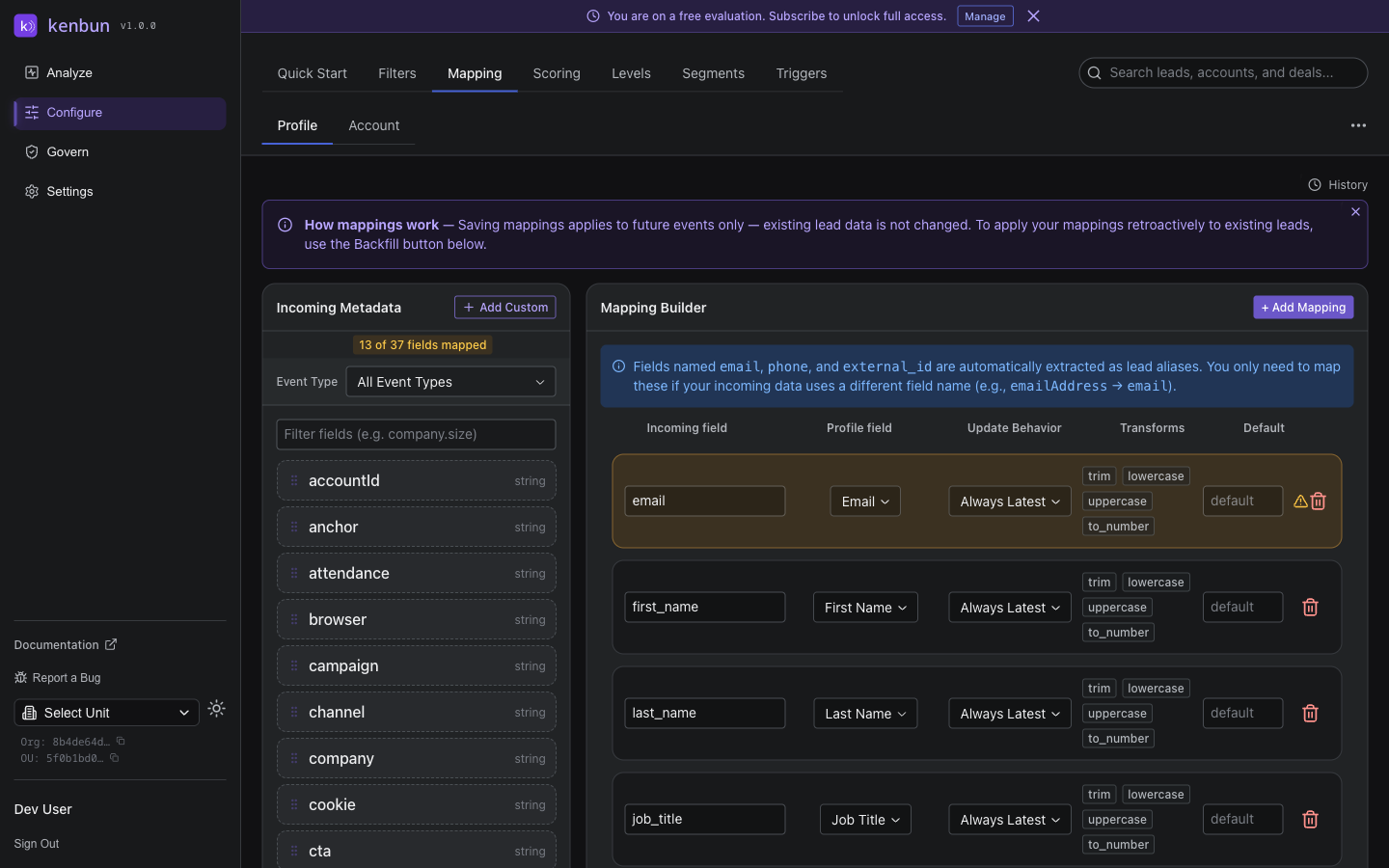
The page is split into two panels:
- Incoming Metadata (left) — every unique metadata key seen across all events in your account. Use the event-type dropdown to narrow the list to fields from a single event type if the full list is overwhelming.
- Mapping Builder (right) — the list of mappings you've created and the controls to add new ones.
Step-by-Step
- Navigate to Configure > Mapping > Profile.
- Pick a source field from the Incoming Metadata list (or type one in if it hasn't been seen yet).
- Choose the target profile property from the dropdown.
- Set the update behavior — Always Latest or Only If Empty (see Mapping overview for guidance).
- Click Save Mappings to apply.
New events that arrive after you save are mapped immediately. To apply mappings to events that already arrived, run a backfill (see below).
Common Profile Mappings
| Source Field (Event Metadata) | Profile Property | Why It Matters |
|---|---|---|
job_title | contact_job_title | Score leads by title; useful free-text fallback |
seniority | contact_seniority | Weight decision-maker engagement higher |
function | contact_function | Target the right buying-committee role |
department | contact_department | Useful when function isn't normalized |
email | contact_email | Display and alias matching |
country / location | contact_country | Geographic targeting and routing |
language | contact_language | Localized nurture sequences |
You can also map any custom field — anything in your event metadata is fair game.
Backfilling Existing Leads
If you set up mappings after leads were already created, you can retroactively populate their profile properties:
- On the Configure > Mapping > Profile page, click Backfill Profile Metadata.
- kenbun walks through every existing lead and re-applies mappings against their historical event metadata.
- The backfill respects your update behavior — leads with Only If Empty mappings keep their current value.
Backfilling is safe to run repeatedly. Leads already populated with the right metadata are skipped.
Viewing Mapping History
Every create, update, and delete on a profile mapping is recorded:
- Navigate to Configure > Mapping > Profile.
- Click History in the top-right corner.
- The slide-out panel shows each change with the action (Created, Updated, Deleted), the team member who made it, and when.
- Expand any entry for a field-by-field diff.
This is the audit trail to use when a profile scoring rule suddenly behaves differently — find the mapping change that preceded it.
How Profile Mapping Powers Profile Scoring
Profile scoring rules evaluate values stored on the lead's profile metadata. Those values land there only because a profile mapping put them there. The dependency is direct:
event arrives → mapping extracts metadata → profile field set → profile scoring rule fires
If a profile scoring rule isn't matching the leads you expect, the first thing to check is whether the underlying mapping exists and is being populated. See Profile Scoring for the scoring side of this workflow.
Property names are case-sensitive. A scoring rule that references contact_seniority won't match a mapping that writes to Contact_Seniority. Standardize on lowercase-with-underscores for target property names.
Pitfalls and Troubleshooting
Mapped Fields Aren't Appearing on Leads
- Source field name mismatch. Field names are case-sensitive. Verify the source field exactly matches what your event payload sends.
- No matching events yet. Mappings only apply going forward. If no event with that field has arrived since the mapping was saved, run a backfill.
- Mapping saved but events stopped sending the field. Check the Incoming Metadata panel — if the field hasn't been seen recently, fix the source rather than the mapping.
Backfill Didn't Update Some Leads
- Update behavior is set to Only If Empty. Leads with an existing value were intentionally skipped. Switch to Always Latest if you want to overwrite.
- The metadata isn't in those leads' event history. Backfill can only populate from data you've already collected.
A Profile Score Doesn't Reflect a Mapping Change
Profile scores update on the next score recompute for that lead. To see changes immediately:
- Send a test event for the lead, or
- Trigger a manual rescore from the lead detail page.
Two Sources Send Different Field Names for the Same Concept
Create two mappings — one for each source field — both pointing at the same target profile property. The standardization happens at the mapping layer.
Related Pages
- Mapping overview — shared concepts across profile and account mapping
- Account Mapping — populate account fields from event metadata
- Profile Scoring — score leads on mapped profile fields
- Profile Levels — tier leads by their profile score
- API: Profile Mappings — manage mappings programmatically