Slack Integration
Send rich lead alerts directly to Slack channels or users. Slack integration provides real-time notifications when leads reach score milestones or complete important behavioral sequences.
Setup Instructions
Step 1: Configure Slack App (Organization Admin)
- Go to Settings → Integrations → Slack
- Click Create Slack App or contact support for app credentials
- Enter your Slack app Client ID and Client Secret
- Click Save
Step 2: Connect Your Workspace (Per Organizational Unit)
- Go to Settings → Integrations → Slack
- Click Connect to Slack
- Select your Slack workspace
- Authorize kenbun to access:
- Post to channels
- Send direct messages
- Read channel list
- Read user list
- Choose default notification channel
- Click Allow
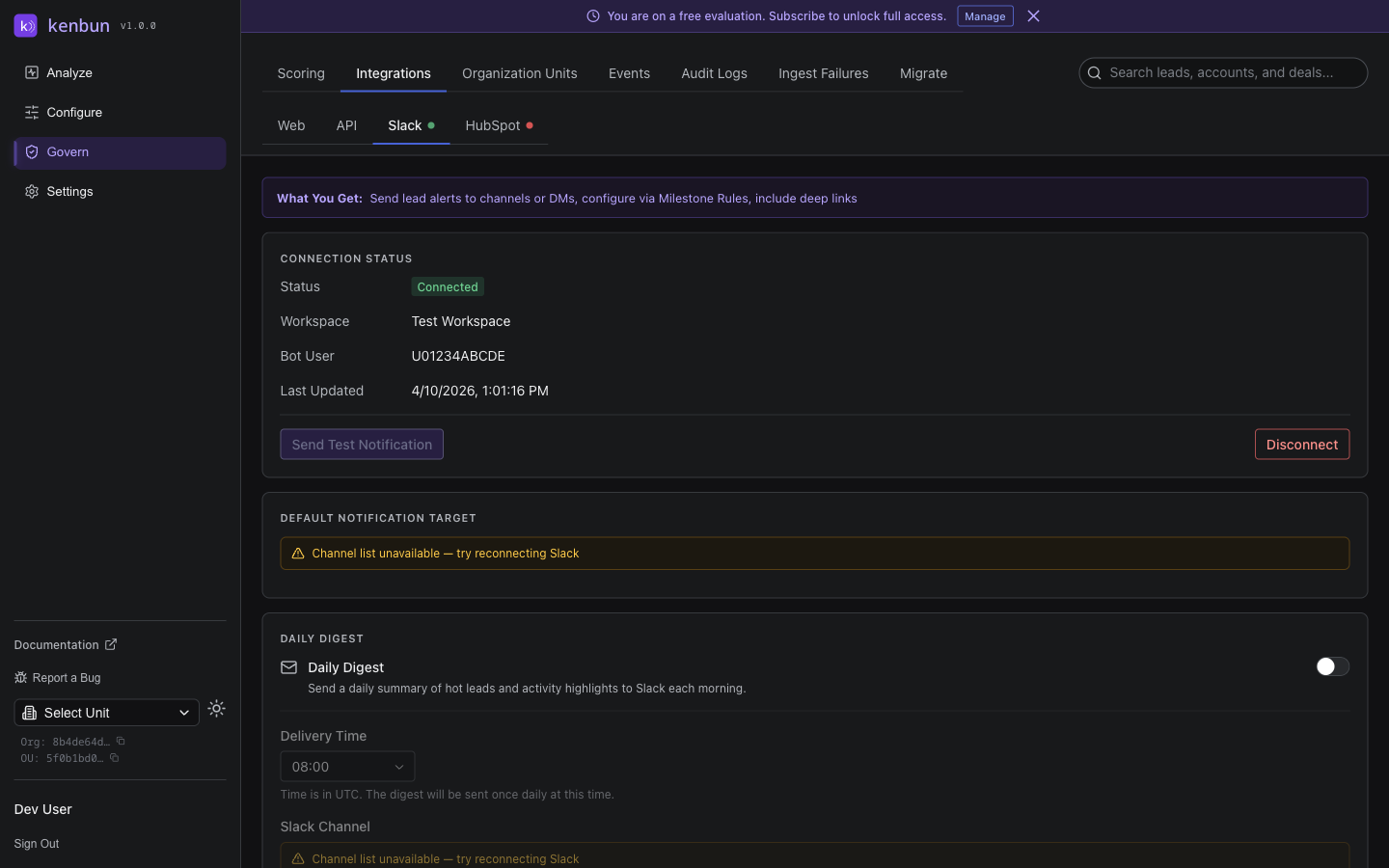
Step 3: Test Connection
- Click Send Test Notification
- Verify message appears in default channel
- Connection is ready to use
Notification Features
Slack notifications include:
Lead Information:
- Lead name or primary identifier (email, phone, etc.)
- Current engagement score
- Engagement level (e.g., "High", "Medium")
Score Breakdown:
- Top 3 activities from last 24 hours
- Activity counts and point values
- Format:
Event Type (count × points) +total
Interactive Actions:
- View Lead button — Opens lead in kenbun
- Assign to Me button — Claims the lead
- View in HubSpot button (if HubSpot connected)
Example Notification:
Hot Lead Alert

Lead: jane.doe@example.com
Score: 75 points
Level: High Engagement

Recent Activity (24h):
- Page View (5x @ 10 pts) +50
- Email Open (3x @ 5 pts) +15
- Form Submit (1x @ 20 pts) +20

[View Lead] [Assign to Me]
Notification Routing
Send to Channels:
- Public channels (kenbun bot must be invited)
- Private channels (bot must be invited)
- Multiple channels per trigger supported
Send to Users:
- Direct message to specific user
- Round-robin assignment
- Based on lead owner or territory
Default Target:
- Set default channel/user per OU
- Used when trigger doesn't specify target
- Can be overridden per trigger
Configuring Triggers for Slack
When creating Milestone or Sequence Triggers:
- Enable Send to Slack
- Choose Channel or User
- Select from dropdown:
- Channels: Shows all accessible channels
- Users: Shows workspace members
- Optional: Add custom message
- Save trigger
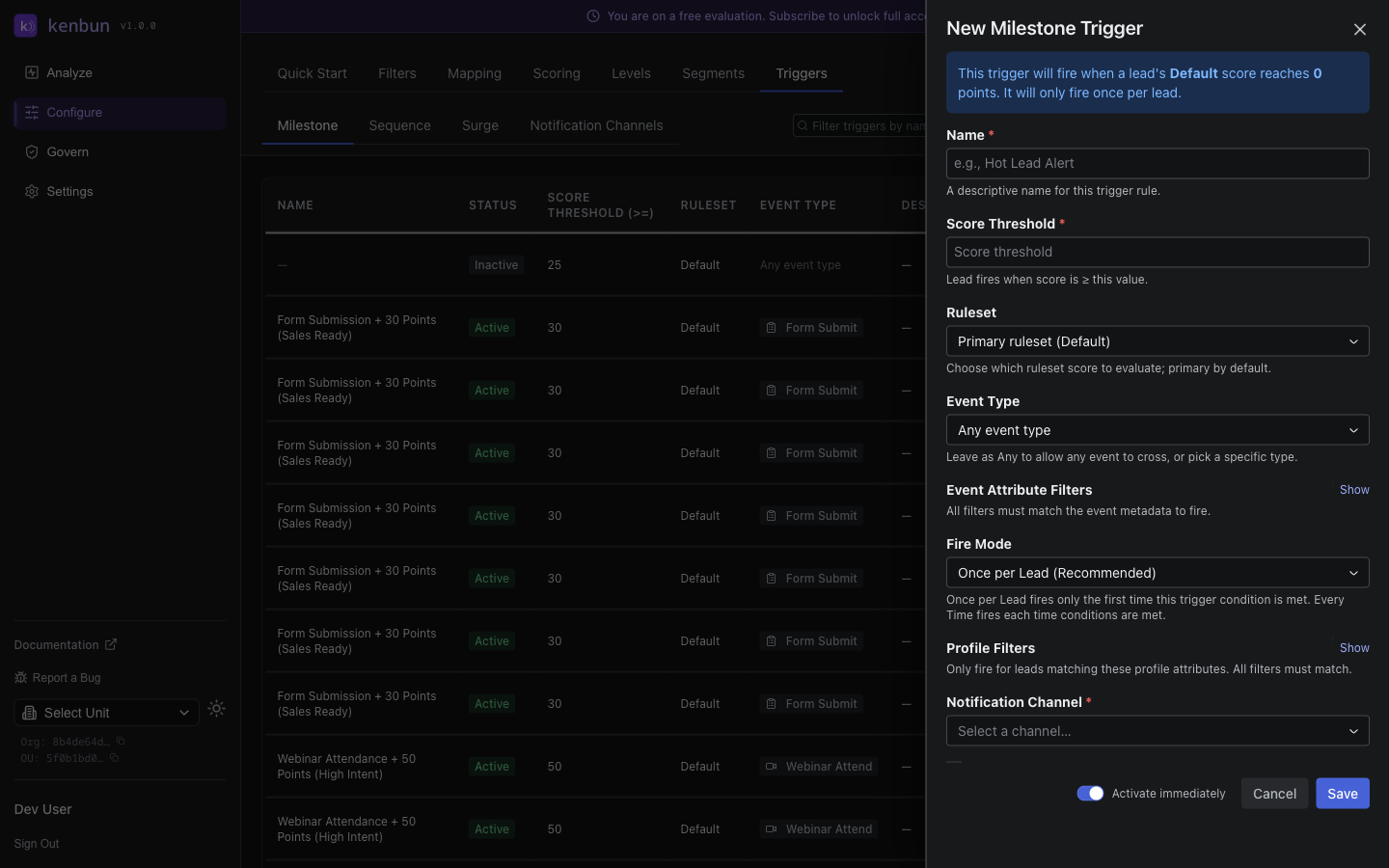
Example Configuration:
- Trigger: Lead reaches 50 points
- Send to: #sales-hot-leads channel
- Custom message: "New qualified lead ready for outreach"
Managing Slack Connection
Disconnect Slack:
- Go to Settings → Integrations → Slack
- Click Disconnect
- Existing triggers will stop sending notifications
Reconnect:
- Follow the connection steps again
- Previous trigger configurations are preserved
- Channel/user selections may need updating if changed
Update Default Channel:
- Click Change Default Target
- Select new channel or user
- Click Save
Troubleshooting
Connection Failed:
- Verify Slack app credentials are correct
- Check workspace permissions
- Ensure you have admin access
- Try disconnecting and reconnecting
Notifications Not Appearing:
- Verify channel still exists
- Check that kenbun bot is in the channel (invite it:
/invite @kenbun) - Verify user hasn't blocked the bot
- Check trigger is enabled
- Review recent errors in the Slack health dashboard
"Channel Not Found" Error:
- Channel may have been deleted or renamed
- Update trigger with new channel
- Invite kenbun bot to private channels
Bot Not Responding to Buttons:
- Verify Slack app has interactive components enabled
- Check request URL is configured correctly
- Ensure webhook signature validation passes
- Review Slack app event subscriptions
Slack Health Dashboard
Monitor Slack integration health from Settings > Integrations > Slack:
- Connection status
- Last successful notification
- Failed notification count
- Recent errors
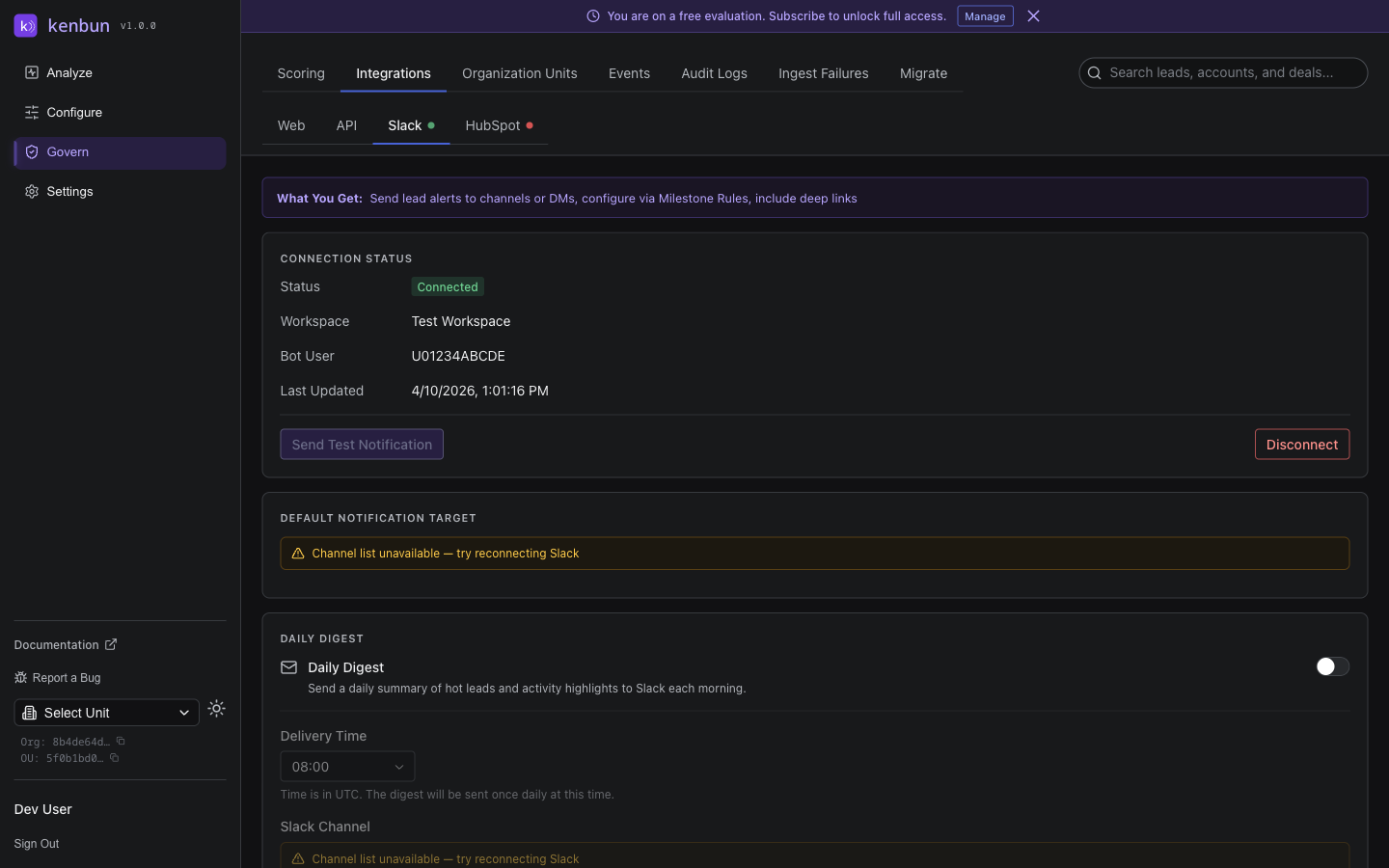
Health Indicators:
- Green dot: All systems working
- Amber dot: Minor issues detected (recent errors but connection still active)
- Red dot: Connection problems requiring attention
Integration Health Dots
When you navigate to Settings > Integrations, each integration tab (Web, API, Slack, HubSpot) shows a colored dot next to its name indicating the current health status at a glance:
| Dot Color | Meaning |
|---|---|
| Green | Connected and healthy, no recent errors |
| Amber | Connected but recent errors detected |
| Red | Not connected or authentication failed |
| No dot | Not yet configured |
This gives you an immediate overview of which integrations need attention without opening each tab.
Related
- Integrations overview
- Triggers — Configure when Slack notifications fire
- HubSpot Integration