HubSpot Integration
kenbun offers deep bidirectional integration with HubSpot, syncing contacts, deals, engagement history, and lead scores automatically.
What Gets Synced
From HubSpot to kenbun:
- Contacts and their properties
- Deals (name, amount, stage, pipeline, close date, associated contacts)
- Engagement history: sent emails, logged calls, meetings, notes, and tasks
- Email engagement events (opens, clicks)
- Form submissions
From kenbun to HubSpot:
- Lead scores (overall, profile, and engagement)
- Engagement level (e.g., Hot, Warm, Cold)
- Last scored timestamp
- Direct link back to the lead in kenbun
Setup
For most teams, connecting HubSpot is a two-step process. There is nothing to install in HubSpot and no credentials to copy.
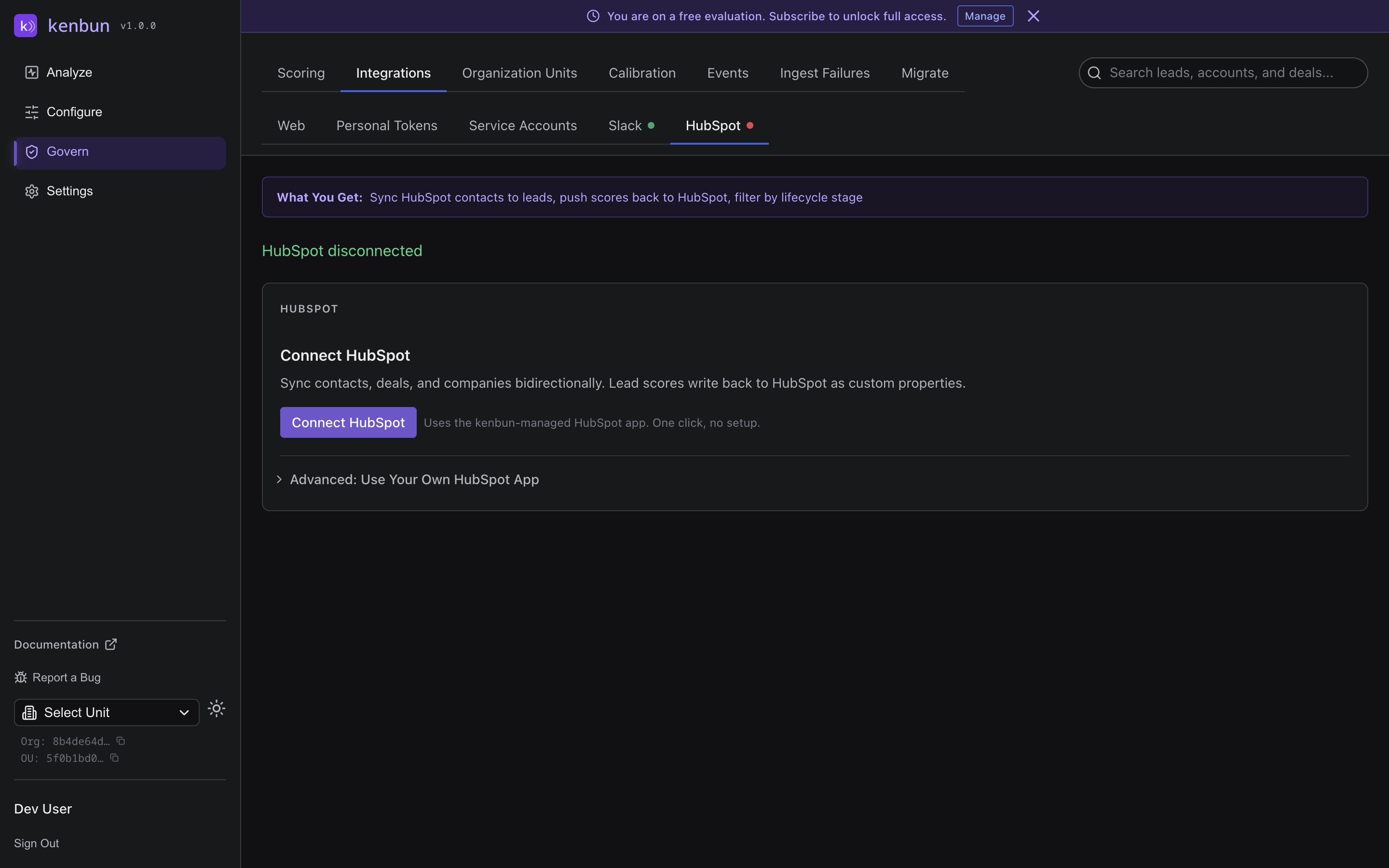
Step 1: Click Connect HubSpot
- In kenbun, go to Govern → Integrations → HubSpot.
- Click Connect HubSpot.
- A HubSpot window opens asking you to choose the portal you want to connect and review the requested permissions.
- Click Choose Account, pick your HubSpot portal, and click Connect app.
You will be returned to kenbun automatically. The connection status changes to Connected, and a small badge below the status reads Connected via kenbun app, confirming you are using the kenbun-managed HubSpot integration.
Step 2: Choose Your Engagement History Preferences
Immediately after connecting, kenbun asks how you want to handle past engagement activity:
- Import Historical Data imports your existing contacts and all past engagement history (emails, calls, meetings, notes, tasks). Choose which engagement types to include. Best for teams that want full historical context for attribution analysis.
- Going-Forward Only only syncs new contacts and future engagement activity. Choose which engagement types to track going forward. Best for teams that want a clean start.
You can change these preferences anytime from Govern → Integrations → HubSpot → Engagement History Settings.
That's It
Contact, deal, and engagement sync starts automatically. Scores written by kenbun begin flowing back to HubSpot as leads accumulate activity. The remaining sections on this page describe optional configuration: choosing which properties to sync, creating custom HubSpot properties for kenbun scores, and tuning sync filters.
Advanced: Use Your Own HubSpot App (Enterprise)
The default setup uses a HubSpot OAuth app that kenbun owns and operates on behalf of all customers. Most teams should use this path. There is no setup work and kenbun manages scope additions, app health, and renewals centrally.
A small number of customers prefer to use their own HubSpot app instead. This is supported as an Advanced opt-in.
Who This Is For
Choose Bring Your Own App if any of the following apply:
- Dedicated rate limits. You operate at a scale where you want your HubSpot daily API quota isolated from other kenbun customers.
- Customer-branded consent. Your security or marketing team requires that the consent screen shown when staff connect HubSpot displays your company's app name and icon, not kenbun's.
- Self-hosted compliance. Your compliance posture requires that the OAuth app brokering the connection be owned by your organization end-to-end.
If none of these apply, the default Connect HubSpot flow is recommended.
What You'll Need
- A HubSpot Developer Account (this is a separate portal type from your regular CRM portal). You can create one for free at developers.hubspot.com.
- The HubSpot CLI installed locally. Follow HubSpot's official CLI installation guide to set it up.
- The kenbun-supplied
hs-kenbunproject folder. Contact kenbun support to request a copy. (We may publish this publicly in a future release.)
How to Connect Using Your Own App
- Upload the kenbun app to your HubSpot Developer Account.
- Log in to the HubSpot CLI:
hs auth. Authenticate against your Developer Account. - In the
hs-kenbunfolder, runhs project upload. This deploys the kenbun integration as an app inside your Developer Account.
- Log in to the HubSpot CLI:
- Retrieve your Client ID and Client Secret.
- In the HubSpot Developer Portal, open your project, go to the Auth tab, and copy the Client ID and Client Secret.
- Enter the credentials in kenbun.
- In kenbun, go to Govern → Integrations → HubSpot.
- Expand Advanced: Use Your Own HubSpot App.
- Paste the Client ID and Client Secret and click Save Credentials.
- Authorize the connection.
- Click Connect HubSpot via Your App.
- A HubSpot window opens. Choose the portal you want to connect, review the requested permissions, and click Connect app.
- You are returned to kenbun. The status badge now reads Connected via your app.
Switching Back to the kenbun App
If you decide later that you no longer need your own app, go to Govern → Integrations → HubSpot and click Switch to kenbun app. Your saved Client ID and Secret are cleared, and you are prompted to reconnect using the kenbun-managed app. Previously synced data is preserved.
Choose Property Sync
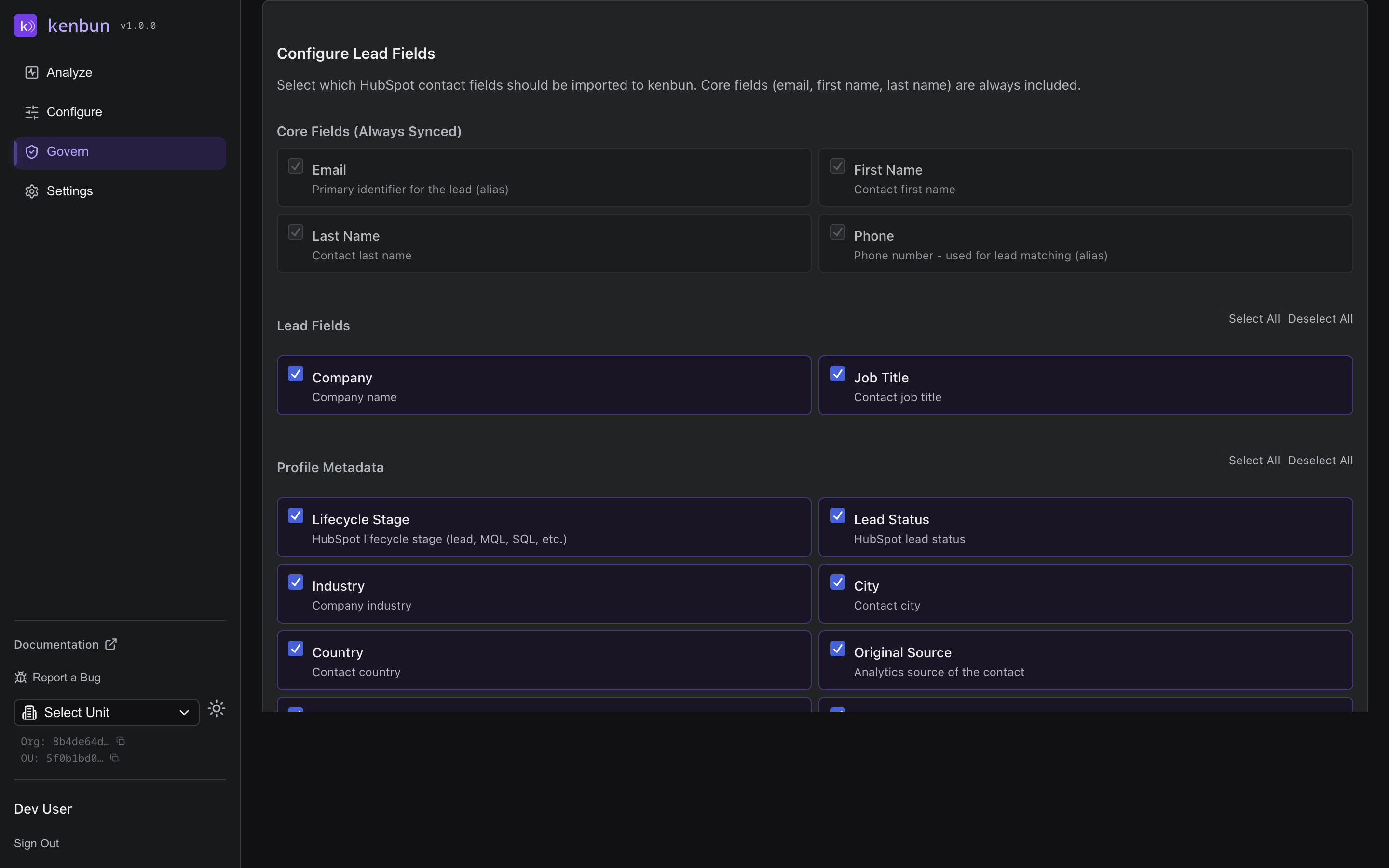
After connecting, decide which HubSpot contact properties to import into kenbun:
- Go to Govern → Integrations → HubSpot.
- Click Property Selection.
- Select HubSpot contact properties to sync (e.g., firstname, lastname, company, lifecycle stage).
- Map each one to a kenbun profile field.
- Click Save Selection.
Set Up Custom Properties (Optional)
kenbun can automatically create custom contact properties in HubSpot so lead scores appear in your CRM:
- Click Check Properties to see which properties already exist.
- Click Setup Properties to create kenbun properties in HubSpot.
- Confirm property creation.
Once created, these properties are available for HubSpot smart lists, workflows, and reports.
Test the Connection
- Click Test Connection.
- Verify sync is working.
- Check that contacts appear in kenbun under Analyze → Leads.
Bidirectional Sync Behavior
Contact Sync (HubSpot to kenbun): When a contact is created or updated in HubSpot, kenbun is notified and syncs the contact within seconds. Every day at 3:00 AM UTC, kenbun automatically reconciles any contacts changed in the last 25 hours to catch anything missed. Historical contacts can be imported anytime via Import Historical Contacts.
Deal Sync (HubSpot to kenbun): When a deal is created, updated, or changes stage, kenbun syncs it within seconds. Every day at 3:00 AM UTC, deals changed in the last 25 hours are reconciled automatically. Historical deals can be imported from the Analyze → Deals page.
Score Sync (kenbun to HubSpot): Lead score updates are written back to HubSpot contact properties in real-time when scores change. The following properties are kept up to date:
| HubSpot Property | Description |
|---|---|
kenbun_score | Overall lead score |
kenbun_profile_score | Profile/fit score |
kenbun_engagement_score | Engagement/activity score |
kenbun_profile_level | Profile level name (e.g., "Hot", "Warm", "Cold") |
kenbun_engagement_level | Engagement level name |
kenbun_last_activity | When the lead last had tracked activity |
kenbun_event_count | Total events tracked for the lead |
kenbun_lead_url | Direct link to the lead in kenbun |
These properties power HubSpot smart lists (e.g., "All contacts with score above 80"), workflow triggers (e.g., "When score band changes to Hot, notify sales"), and deal record context.
Deal Attribution
When a deal reaches a closed stage (Closed Won or Closed Lost), kenbun automatically computes deal attribution, determining which contacts contributed to the deal and how much influence each had.
What attribution shows:
- Each associated contact's name and email
- Their attribution weight (e.g., three contacts on a deal each receive 33.3%)
- Their lead score at the time of attribution
- The portion of deal value attributed to each contact
Where to view attribution:
- Go to Analyze → Deals (visible only when Deal Management is enabled in Govern > Scoring).
- The deal list shows stage, amount, close date, and days to close.
- Click any closed deal to open the attribution panel with a full contact breakdown.
Attribution Insights
The Analyze → Deals page includes an Attribution Insights panel above the deals table that summarises patterns across closed-won deals.
| Metric | Description |
|---|---|
| Average score at MQL | Average engagement score when leads became Marketing Qualified Leads |
| Average score at SQL | Average score when leads became Sales Qualified Leads |
| Average score at Opportunity | Average score when leads entered an active opportunity |
| Average score at Close | Average score at the point deals closed won |
| Closed-won deals | Total count of closed-won deals in the current view |
| Top event types driving pipeline | The event types most associated with closed-won deals, with a relative bar showing the proportion of points each event type contributed |
How to use it:
- Use the milestone score averages to calibrate your engagement level thresholds. If leads are typically scoring 62 at the SQL milestone, consider setting your "Hot Lead" threshold close to that number.
- Review the top event types to confirm your scoring rules are weighting the right behaviours. If a particular event type appears consistently across wins but carries low weight, that is a signal to increase its score.
- The insights update automatically as new deals close.
Engagement History
Engagement history captures past interactions between your team and your contacts: emails sent, calls logged, meetings held, notes added, and tasks completed.
Why this matters: With engagement history imported, kenbun can attribute deals more accurately and give your team a complete picture of every contact relationship, not just future activity.
Engagement types you can sync:
| Type | What It Captures |
|---|---|
| Emails | Emails sent or received tracked in HubSpot |
| Calls | Logged phone calls |
| Meetings | Scheduled and completed meetings |
| Notes | Internal notes added to contacts |
| Tasks | Tasks associated with contacts |
Configuring engagement history:
- Go to Govern → Integrations → HubSpot.
- Find the Engagement History section.
- Check or uncheck the engagement types you want to sync.
- Click Save to update the configuration going forward.
- Click Import Engagement History to trigger a fresh import of past activity for the selected types.
The Last imported timestamp shows when the most recent engagement history import completed.
Contact Sync Filters
You can restrict which HubSpot contacts are imported into kenbun:
- By lifecycle stage: Only import contacts in specific lifecycle stages (e.g., Subscriber, Lead, Marketing Qualified Lead).
- By email domain: Only import contacts with specific email domains (e.g., only @acme.com).
To configure filters: Govern → Integrations → HubSpot → Sync Filters.
Sharing Leads and Segments
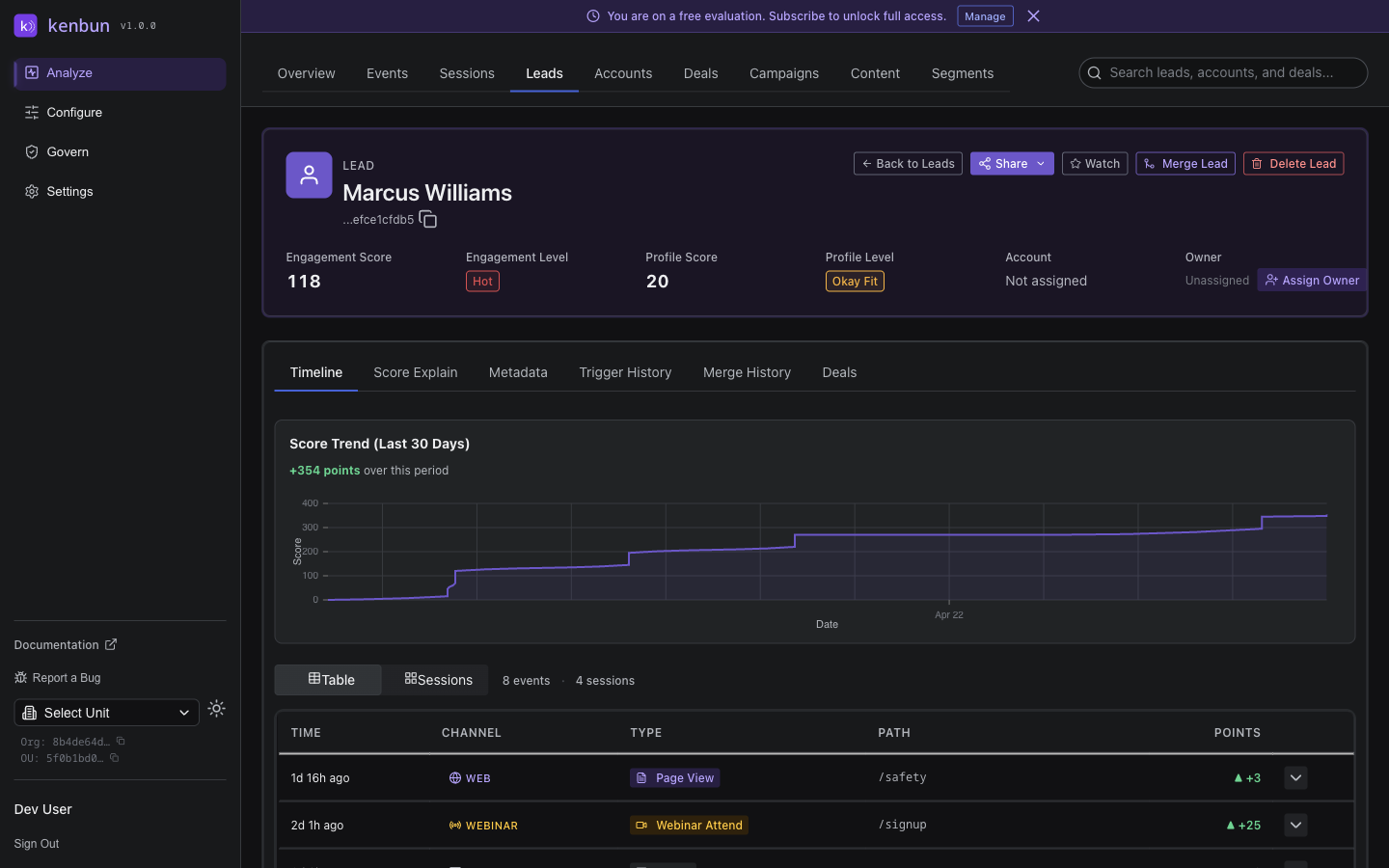
Share Individual Lead:
- Open the lead detail page.
- Click Share to HubSpot.
- The lead is created or updated in HubSpot with the current score.
Share Segment:
- Go to Analyze → Segments.
- Click a segment name.
- Click Share to HubSpot.
- All leads in the segment are synced to HubSpot.
Monitoring Sync Health
View sync status and recent errors:
- Go to Govern → Integrations → HubSpot.
- Check the Sync Status section: last successful sync time, number of contacts synced, any recent errors.
The Sync Errors page shows failed sync attempts, error messages, affected contact IDs, and retry options.
Understanding sync status labels
The Sync Statistics panel shows three status counts for the last 24 hours:
- Successful (green): The contact and all associated data (email alias, phone alias, account link) synced without issue.
- Partial (amber): The contact's lead record was created or updated, but a secondary step — such as adding an email alias or linking a phone number — did not complete. The lead exists in kenbun and can be scored, but may not be searchable by the affected field. Occasional partial syncs are usually self-correcting on the next reconciliation cycle. If the count remains elevated over multiple days, contact support.
- Failed (red): The lead record itself could not be created or updated. No data was written for that contact. Check the Sync Errors page for the specific error and retry if appropriate.
Importing Historical Data
You can trigger a fresh historical import at any time:
Import historical contacts: Go to Govern → Integrations → HubSpot and click Import Historical Contacts.
Import engagement history: Go to Govern → Integrations → HubSpot → Engagement History Settings, select which types to import, then click Import Engagement History.
Import historical deals: Go to Analyze → Deals and click Import Historical Deals.
Large imports (10,000+ contacts or engagements) run automatically, on a schedule, and may take several hours to complete.
Disconnecting HubSpot
To disconnect HubSpot:
- Go to Govern → Integrations → HubSpot.
- Click Disconnect.
Disconnecting stops all real-time syncing, daily reconciliation, and score sync. It does not delete any previously synced data. Your leads, deals, attribution results, and engagement history remain in kenbun. You can reconnect at any time.
Troubleshooting
Connection Failed:
- Try clicking Connect HubSpot again. The HubSpot consent screen sometimes times out if left open for several minutes.
- If you are using Bring Your Own App (Advanced), verify your Client ID and Client Secret are pasted correctly with no leading or trailing spaces.
- Confirm the HubSpot user authorizing the connection has permission to install apps in the target portal.
Contacts Not Syncing:
- Check sync filter settings; filters may be excluding contacts.
- Review sync errors for specific failure messages.
- If HubSpot API rate limits are being hit, kenbun will retry automatically.
Deals Not Appearing:
- Confirm the connected HubSpot user has permission to read deals.
- Check that deal sync is not paused.
- Review sync errors for deal-specific failures.
Engagement History Not Importing:
- Confirm at least one engagement type is selected in the settings.
- Check the Last imported timestamp; the import may still be in progress.
- Try clicking Import Engagement History again to retry.
Scores Not Updating in HubSpot:
- Verify custom properties were created via Setup Properties.
- Confirm the connected HubSpot user has permission to write contact properties.
- Review recent errors in the sync status panel.
API Rate Limits
HubSpot enforces API rate limits. kenbun handles rate limit responses automatically by queuing and retrying requests. If you notice delays during large imports:
- Large backfills run automatically, on a schedule. Check sync status for progress.
- Stagger large operations if possible.
- Customers on the Bring Your Own App path can request a rate limit increase directly with HubSpot support for their own app.