Account Management
The Accounts page provides a comprehensive view of all companies engaging with your product or marketing. View account-level engagement, scores, and metadata to prioritize outreach.
Accessing Accounts
Navigate to Analyze > Accounts to view your account list.
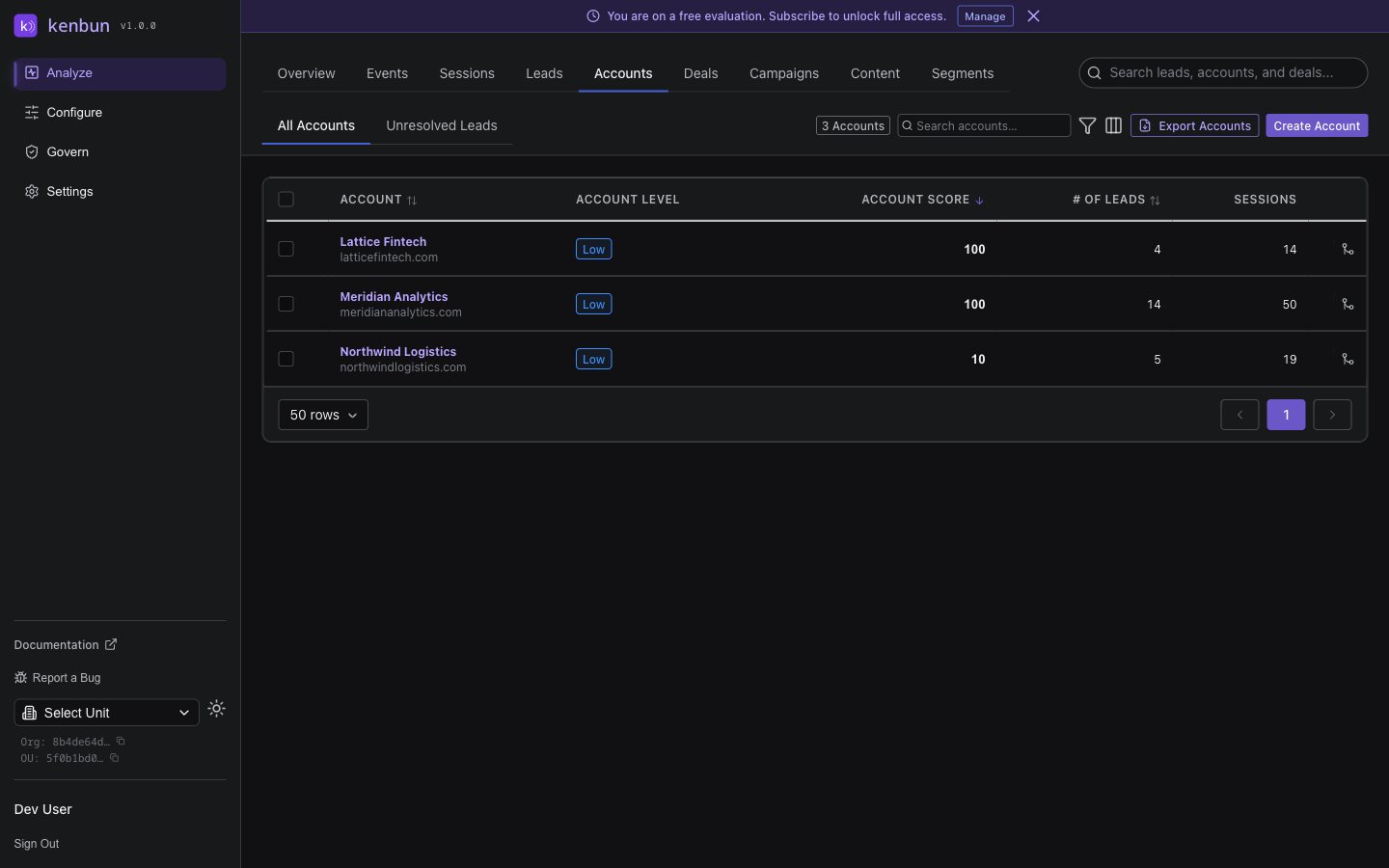
Account List View
The accounts table displays:
| Column | Description |
|---|---|
| Account | Company name with the account's primary domain shown as a sub-line beneath it |
| Account Level | The account's firmographic tier, based on your configured account levels |
| Account Score | Firmographic fit score based on company attributes. Click the score value to open the Score Explain panel for a rule-by-rule breakdown |
| # of Leads | Number of contacts associated with this account |
| Sessions | Number of browsing sessions across all contacts at the account |
Filtering and Sorting
The filter bar above the accounts table supports:
| Filter | Description |
|---|---|
| Search | Find accounts by name or domain |
| Date Range | Limit to accounts with activity in a selected period (Today, Last 7 Days, Last 30 Days, Last 90 Days, All Time) |
| Account Level | Show only accounts at one of your configured account levels |
| Min Score | Show only accounts with an account score at or above a threshold |
| Owner | Filter by the team member assigned to the top-scoring lead in the account |
| Has Leads | Show only accounts that have at least one associated lead |
Sort by clicking column headers — account name, account level, account score, number of leads, or sessions.
Account Actions
View Account Detail
Click any account row to open the Account Detail View below.
Bulk Actions
Select multiple accounts using checkboxes to:
- Export to CSV — Download account data
- Delete Accounts — Permanently remove accounts and associated leads
- Add to Segment — Group accounts for targeted campaigns
To select all accounts: check the header checkbox, then click Select All Filtered Accounts if more than one page.
Export Accounts
- Select accounts (or select all)
- Click Export
- Choose columns: account info (name, domain, ID), scores and levels, lead counts, activity timestamps, custom metadata fields
The CSV download includes all selected accounts with chosen columns.
Account Detail View
Click any account to open the detailed view. The page is organized into a persistent Buying Committee panel below the account header, plus tabs for drilling into specific aspects.
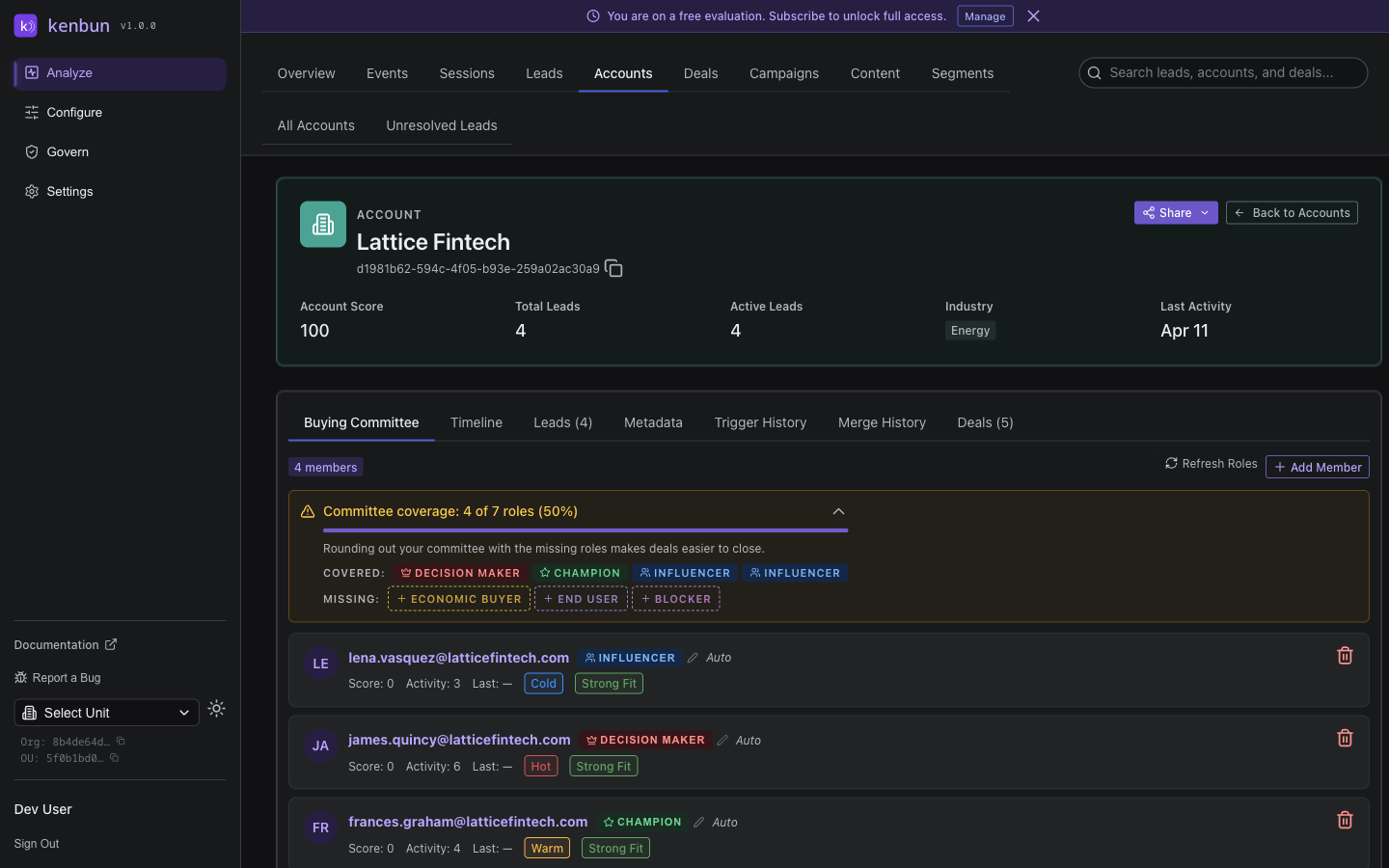
Account Information
The account header card displays key attributes at a glance: account score, total leads, active leads, industry, and last activity. Account names, domains, and most metadata fields are populated automatically from event properties, Account Field Mappings, and connected integrations (HubSpot, Salesforce, enrichment providers) — accounts are not edited inline on this page. To change an account's name or other firmographic data, update the source record in your CRM or enrichment integration, or adjust the field mappings that populate it.
Buying Committee
The Buying Committee panel identifies the key stakeholders involved in the purchase decision. Each member is shown with their role, engagement level, and activity metrics.
Committee Roles:
| Role | Description |
|---|---|
| Decision Maker | Has final authority on the purchase |
| Influencer | Shapes evaluation criteria and vendor selection |
| Champion | Internal advocate who promotes your solution |
| KOL | Key opinion leader whose perspective carries weight |
| Other | Involved without a specific defined role |
Managing the Buying Committee:
- Add Member: Click Add Member, search for a lead from the account, choose a role, optionally add notes
- Update Role: Click the role badge next to the member's name and select a new role
- Remove: Click the remove icon and confirm
Auto-Detection: kenbun can automatically detect buying committee members based on engagement patterns and assign roles from activity data. Auto-detected members are marked as such. You can override auto-detected roles by manually assigning a new role; manual assignments are preserved during future auto-detection refreshes. Click Refresh Roles to re-analyze engagement data.
Leads Tab
Shows all contacts at the account: contact name, engagement score, profile score, owner, last activity, and status. Click any contact to view their lead detail page.
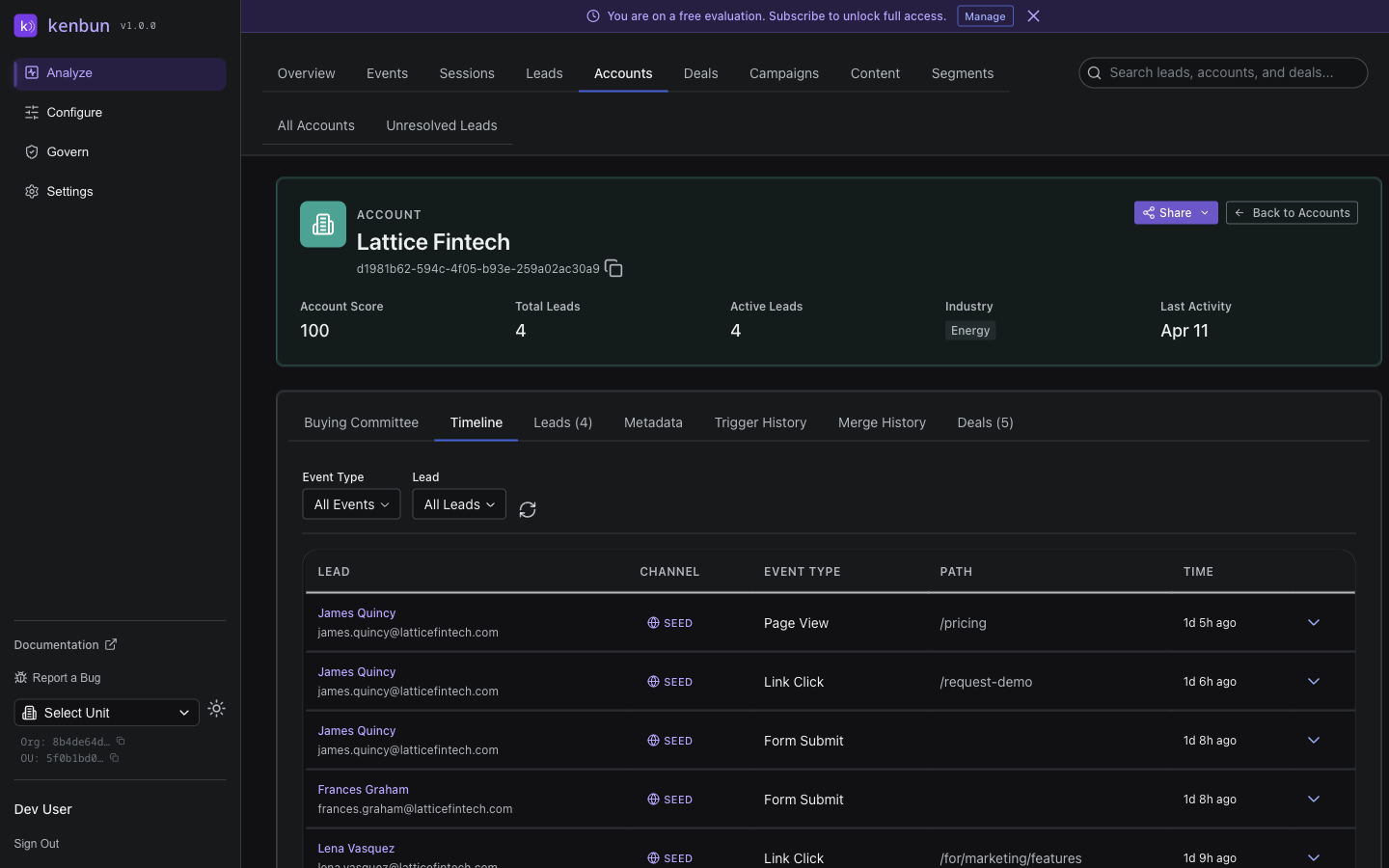
Engagement Timeline
View all account activity in chronological order. Each entry shows timestamp, contact name, event type, channel (website, email, product), and event details.
Filter the timeline by contact, event type, or channel to:
- Understand engagement patterns
- Identify which contacts are most active
- Spot coordinated multi-stakeholder activity
- See what content resonates
- Track the buyer's journey
Surge History
View surge activity spikes for the account: surge window, event count, contacts involved, primary channel, and surge multiplier. Surge behavior indicates increased buying intent, active evaluation, internal discussions, and time-sensitive opportunities.
Account Creation
Accounts are created automatically when:
- A lead with a new
account_idis added - Events include an
account_idnot yet seen - Profile Mappings derive a new account from lead data
- A contact is imported via the Chrome Extension from LinkedIn (the extension resolves or creates accounts based on company name)
You can also create accounts via the POST /accounts API endpoint. See the Accounts API.
Account Metadata
Accounts collect metadata from event properties, lead properties, Account Field Mappings, and integrations (HubSpot, Salesforce, enrichment providers).
Common account metadata fields: company_size, industry, country, employees, revenue, plan, account_status.
Understanding Account Scores
Account scores are calculated from Account Scoring Rules:
Account Score = Sum of Matched Account Rules
Example:
company_size= "Enterprise" → +50 pointsindustry= "Technology" → +30 pointsemployees> 1000 → +40 points
If an account matches all three: 50 + 30 + 40 = 120 points.
Account scores represent firmographic fit, not engagement. A high account score means the company matches your Ideal Customer Profile (ICP).
Account Score vs. Engagement Score
| Combination | What It Means |
|---|---|
| High account + high engagement | Top priority — hot target account |
| High account + low engagement | Needs nurturing — cold target |
| Low account + high engagement | May not be ideal fit despite interest |
| Low account + low engagement | Low priority |
Account Levels
Accounts are automatically assigned to levels based on their account score. Levels are configured in Account Levels with score thresholds. Example:
| Level | Range | Meaning |
|---|---|---|
| Target | 80–100 | Top-tier accounts |
| Qualified | 50–79 | Good-fit accounts |
| Standard | 20–49 | Average-fit accounts |
| Low Priority | 0–19 | Outside ICP |
Accounts move between levels automatically as their score changes.
Account-Level Triggers
Set up automated actions when accounts reach specific levels, exceed engagement thresholds, experience surge activity, or match specific criteria. See Account Triggers.
Best Practices
Prioritize by Combined Signals
The best accounts have high account score (firmographic fit), high engagement score (behavioral interest), multiple contacts active, recent surge activity, and key stakeholder engagement.
Monitor Multi-Threading
Accounts with multiple active contacts indicate internal discussions, cross-functional interest, and active evaluation — higher close probability.
Use Account Views for Sales Handoff
When passing accounts to sales, share the account detail page link, key contacts and engagement levels, engagement timeline highlights, recent surge activity, and relevant metadata.
Regular Account Hygiene
Merge duplicate accounts caused by domain variations. Update account metadata as you learn more. Review low-engagement accounts quarterly. Archive inactive accounts after 12 months.
Segment by Account Tier
| Tier | Approach |
|---|---|
| Target | High-touch, personalized outreach |
| Qualified | Targeted campaigns and nurture sequences |
| Standard | General marketing and self-service |
| Low Priority | Minimal resources, focus elsewhere |
Troubleshooting
Accounts Not Appearing
- Ensure leads have
account_idset - Check date range filter isn't excluding them
- Verify account level filter shows all levels
- Search by domain to find specific accounts
Incorrect Account Names
- Include
company_nameoraccount_namein event properties - Configure Account Field Mappings to extract company name
- Use enrichment integrations or your CRM to populate account names
Duplicate Accounts
- Ensure consistent
account_idvalues across all events - Standardize email domains (use root domain, not subdomains)
- Merge duplicates from the Accounts list page (select two accounts to enable Merge)
- Update Profile Mappings to normalize account identification
Engagement Timeline Empty
- Verify events exist for the account's leads
- Check date range covers the period with activity
- Ensure leads are properly linked to the account
- Confirm events were successfully ingested